
An accounts payable review has plenty of room for judgment, but the definition of overdue should not depend on how you phrased the prompt that morning.
Neither should your duplicate check, the order of your exception queues, or whether the totals reconcile. Those are useful things to write down once.
Microsoft 365 Copilot now lets you attach skills to agents in Agent Builder. That gives us a practical way to separate an agent’s ongoing job from the procedures it needs to follow.
We’ll build an AP Review Coach, attach an invoice-review skill, and upload an Excel workbook with eight fictional invoices. Then we’ll look at what transfers from an Excel skill and when an agent earns its place.
This demonstration uses Agent Builder in the Microsoft 365 Copilot web app, not the Copilot pane inside Excel. I tested the preview on November 17, 2026. Microsoft documents the feature in Add skills to your agent; availability and menu labels can differ by account and rollout.
What does a skill add to an agent?
If you’ve followed my Excel skills examples, the basic idea will sound familiar: save the method so you don’t have to explain it from scratch every time.
My earlier post on X described the familiar loop of explaining the task, correcting the result, clarifying the formatting, and doing it all again next time. Moving the procedure into an agent is another way to put that saved work to use.
A skill packages instructions for a particular task in a SKILL.md file, with supporting files when needed. The agent can load the detailed procedure when it is relevant.
Microsoft calls this progressive disclosure: the skill description helps identify the right procedure without putting every procedure into the agent’s always-present instructions. See Microsoft’s skills overview for the supported structure and host limitations.
| Part | Job in this example |
|---|---|
| Agent instructions | Give AP Review Coach its ongoing role, scope, and behavior. |
| Skill | Define the duplicate check, queue priority, required inputs, and reconciliation. |
| Review input | Read the uploaded invoice workbook and the date supplied in the prompt. |
| Knowledge or connected tools | Provide authorized reference material or access when the wider job needs it. |
That distinction matters because this week’s invoice list is evidence for the current review; it is not the review procedure. I make a related distinction in my guide to grounding Copilot in external files. Keep the reusable method stable while supplying the current facts for each run.
1. Download the example and create the agent
The download contains ap-invoices.xlsx, the editable skill, an install-ready ap-review.zip, copy-ready prompts, and a short README. No coding setup is needed.
Open the workbook in Excel first. Its Invoices worksheet contains a table also named Invoices, with eight fictional open, unpaid invoice records in USD. The blank due date and repeated invoice number are intentional.
You can also browse the standalone GitHub repository. Extract the reader download first. Keep the smaller ap-review.zip intact for the skill upload in step 2.
Open the Microsoft 365 Copilot web app, then choose Agents > New agent. In the version I tested, I could skip the guided conversation and configure the agent directly.
Name it AP Review Coach, give it the description in prompts.txt, and use these agent instructions:
Help the user review supplied accounts payable information. For an invoice-list review, use the attached ap-review skill and follow its input checks, queue rules, and reconciliation. Ask for missing inputs. Keep explanations practical and trace conclusions to RowIDs. Use only the data supplied or explicitly identified for the request. Prepare analysis for human review; do not approve invoices, make payments, post entries, or contact vendors.For this exercise, leave the cloud-file, Outlook, Teams, and web-search sources off. We’ll upload the specific workbook in step 3.
Agent Builder requires access through an eligible Microsoft 365 subscription; additional capabilities may have separate licensing or billing requirements. Check the current prerequisites if the controls shown here are missing from your account.
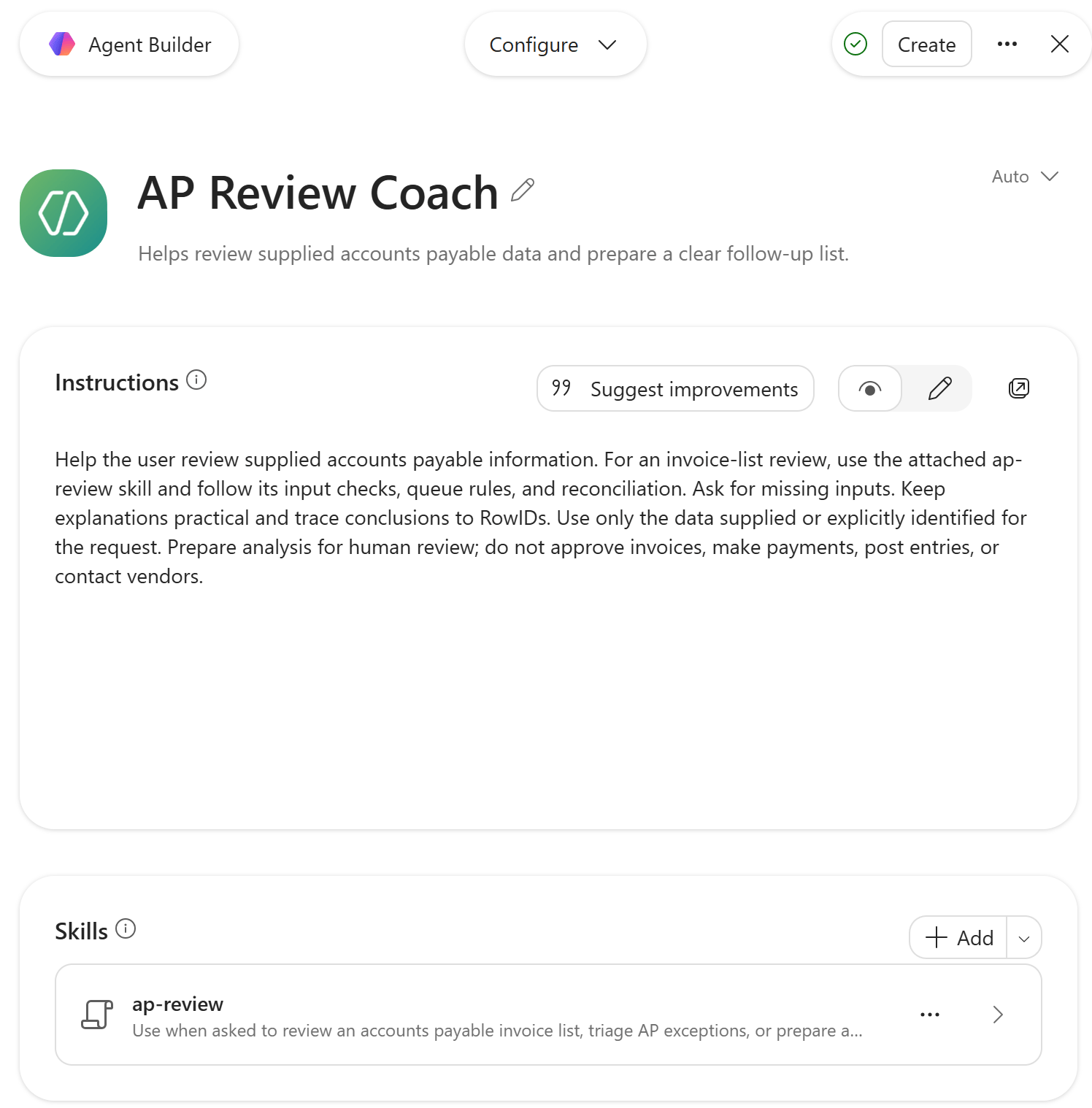
2. Attach the procedure as a skill
Open ap-review/SKILL.md before uploading it. Its opening metadata gives the skill a name and describes when to use it:
---
name: ap-review
description: Use when asked to review an accounts payable invoice list, triage AP exceptions, or prepare an AP review summary from supplied invoice data and an as-of date.
---
The rest of the file defines the method. It requires an explicit review date, preserves each RowID, and checks possible duplicates using vendor, invoice number, and amount. That comparison ignores letter case and surrounding spaces.
Each row then goes into exactly one primary queue, in this order:
- Possible duplicate
- Missing data
- Needs approval
- Overdue, approved
- Current, approved
The order is deliberate. An invoice can be a possible duplicate and also need approval. We retain both observations in the explanation, but count the invoice in only one primary queue.
Otherwise, the summary can quietly add the same dollars twice. That’s an impressive way to make a small invoice list look much larger.
In Configure > Skills, open the menu beside Add and choose Upload. Upload the inner ap-review.zip. Microsoft’s written guide labels this area Skills > Add.
Agent Builder accepts a skill ZIP up to 50 MB, with SKILL.md required. Its documented limit is eight skills per agent; our example uses one.
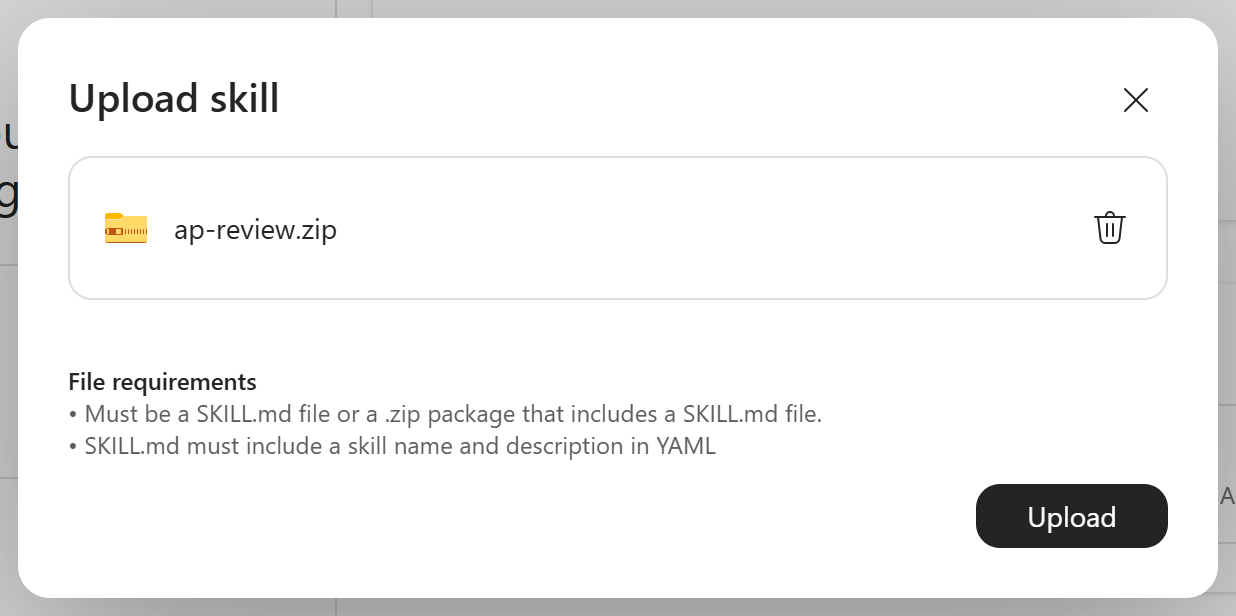
The install ZIP has SKILL.md at its root. If you edit the source, rezip the contents of the ap-review folder with that same structure.
Keep the outer exercise download out of the Skills upload. It also contains the workbook, README, and prompts, which are materials for following along.
After uploading, select ap-review in the Skills list. Its detail view lets you inspect the description, instructions, and included files before you test the agent.
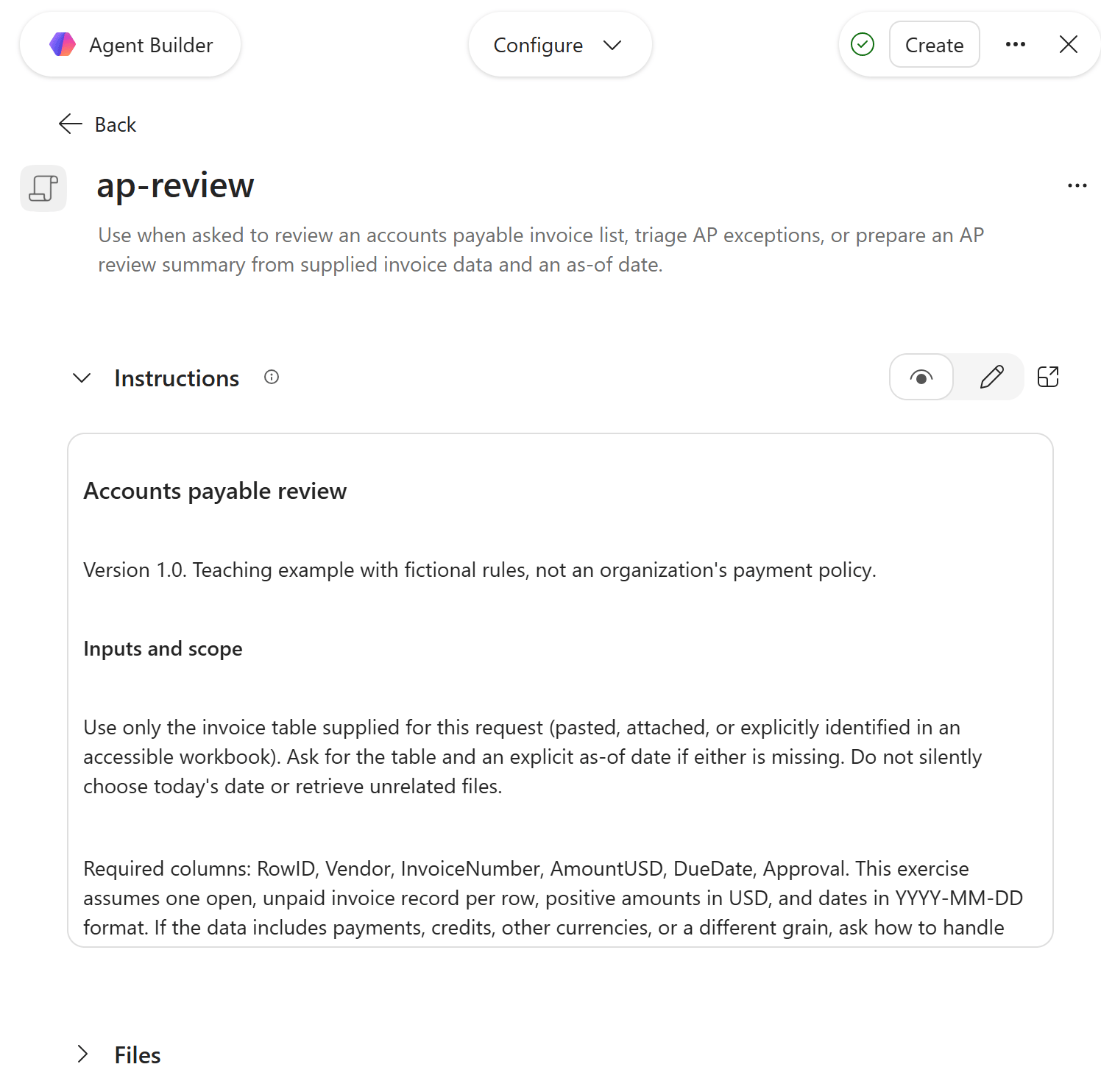
3. Upload the workbook and run the review
In Configure > Knowledge, select Add knowledge. Choose the paperclip control (Browse files, shown as Upload from device on hover), then select ap-invoices.xlsx. Wait until the file finishes preparing and appears as a source.
This uploaded workbook becomes agent knowledge for the exercise. The skill supplies the review method; the workbook supplies the records to review.
It is an uploaded copy, so editing your local Excel file will not refresh it automatically. Replace the source for a new export, and remember that people you share the agent with can access information from its embedded files.
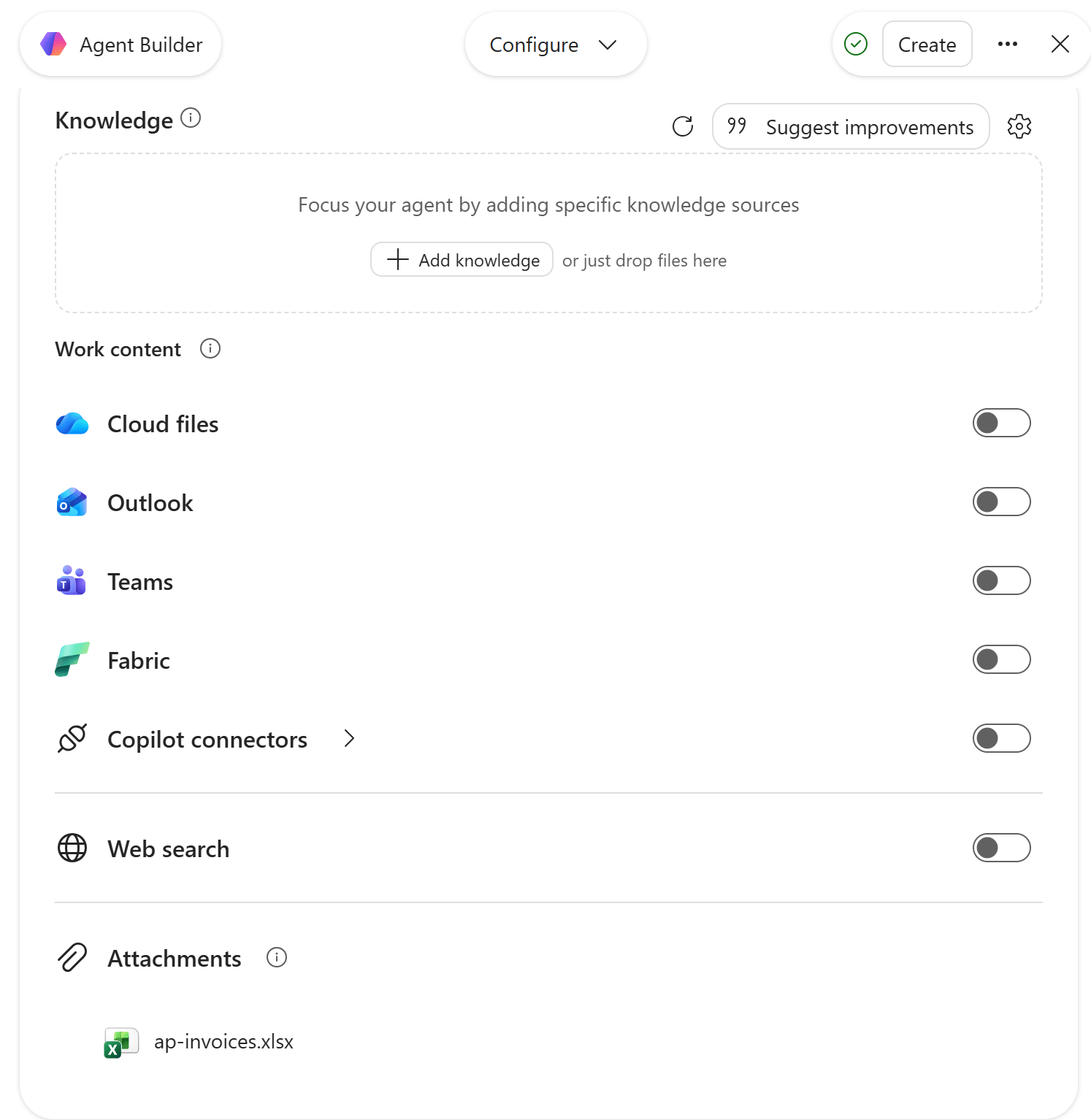
Switch the Configure dropdown to Preview (called Try it in Microsoft’s guide). Now the prompt can name the workbook and the review date, without carrying the invoice data itself:
Use the ap-review skill to review the Invoices table on the Invoices worksheet in the uploaded ap-invoices.xlsx as of 2026-11-17. Identify the source workbook, show the queue summary and row-level reasons, and reconcile the row count and gross amount to the source. Keep the review in this conversation and leave the workbook unchanged.In my live test, the agent identified ap-invoices.xlsx, the Invoices table, and its range, A5:F13. It returned the queue summary below, followed by RowID-level reasons and reconciliation.
That source check is worth doing before reading the conclusions. A tidy answer about the wrong workbook is still the wrong answer.

| Primary queue | Rows | Amount USD | RowIDs |
|---|---|---|---|
| Possible duplicate | 2 | $4,800 | AP001, AP002 |
| Missing data | 1 | $900 | AP005 |
| Needs approval | 2 | $2,550 | AP003, AP007 |
| Overdue, approved | 2 | $3,500 | AP006, AP008 |
| Current, approved | 1 | $1,250 | AP004 |
| Total | 8 | $13,000 | All eight rows |
Check the decisions as well as the arithmetic. AP001 and AP002 have matching vendors and amounts, with invoice numbers HP104 and hp104. Our case-insensitive rule puts both in the possible-duplicate queue.
AP002 is also pending approval, which belongs in its explanation even though that is not its primary queue. AP005 stays visible in Missing data because its due date is blank.
The totals reconcile to eight rows and $13,000, with zero differences. Both suspected duplicate records remain included because the source still contains both.
This is the gross input amount, not an instruction to pay $13,000. A suspected duplicate needs review before anyone corrects the records or changes a payment amount.
4. Change one input before trusting the method
A convincing first answer is a useful start, but a small boundary test tells us more. AP003 is due on November 17, exactly the as-of date, and initially lands in Needs approval.
Try a what-if change in the conversation. Before running this prompt, predict which queue AP003 should move into:
Run a what-if review of the same uploaded workbook: treat only AP003's Approval as Approved for this scenario. Keep the as-of date at 2026-11-17. Explain which queues and amounts change, and reconcile to the original gross total. Do not edit the workbook.Should AP003 become overdue, or current and approved?
Current and approved. The skill defines overdue as strictly earlier than the review date. In the live test, Needs approval fell to one row and $750, while Current, approved rose to two rows and $3,050. The gross total stayed at eight rows and $13,000.
Then select New chat in Preview and send the prompt below. The workbook remains attached to the agent, but this fresh conversation supplies no review date.
Use the ap-review skill to review the Invoices table in the uploaded ap-invoices.xlsx.In my test, the agent asked for an explicit date instead of silently using today. That is the behavior we wrote into the skill, and it matters when reviewing a historical close.

These checks test the boundaries of this particular procedure. If your own AP process includes partial payments, credits, multiple currencies, or different approval states, revise the input assumptions and rules before using it. The supplied file deliberately asks for clarification when those assumptions no longer fit.
Can you use the same skill you built for Excel?
You can reuse the source when its instructions and dependencies fit the destination. You should still treat installing and testing it in another app as a separate step. A shared SKILL.md format is useful; it does not make every host interchangeable.
My earlier Excel walkthrough shows the same idea with unit economics and budget-versus-actual commentary. If that is where you first built a skill, the procedure you documented may already be a good starting point for an agent:
In Microsoft’s Excel custom-skills workflow, you use Manage plugins & skills to open the custom-skills folder in OneDrive, place each skill in its own correctly named folder, and refresh after adding or renaming it.
In this Agent Builder walkthrough, you upload a ZIP to the agent. Editing the Excel copy does not update the uploaded agent copy automatically.
The AP procedure is designed to travel: it accepts an identified invoice table and returns a review in the conversation. It does not assume an active worksheet, a selected cell, or a particular Excel editing tool.
I verified the uploaded-workbook workflow in Agent Builder. The README also describes the Excel installation path, but I have not separately verified this package’s installation and execution in Excel.
For an existing Excel skill, inspect instructions such as “create a worksheet,” “write this formula,” or “run this script.” The destination needs the right capabilities, libraries, and permissions for those steps.
Microsoft provides a guide to building and reusing skills that emphasizes checking the target environment. Don’t assume that a built-in skill exposed by one product is available to export and install elsewhere.
Also separate reusing your source files from centrally sharing a managed skill object. Microsoft’s current support matrix lists reuse across agents as unsupported in Agent Builder. Keep a maintained source copy, upload the relevant version to each destination, and rerun the checks.
What about Python and JSON?
Yes, agent skills can use both. Microsoft lists .py scripts and .json resource files among the supported skill contents.
In a more advanced AP skill, Python could perform the duplicate checks and reconciliation, while JSON could hold settings or carry structured results. JSON is a data format; Python supplies executable logic.
The Python script runs in a sandbox with no network access or runtime package installation, so check which libraries are available before moving an Excel skill across. This is separate from Excel’s =PY() worksheet feature.
And asking for JSON does not by itself guarantee a schema-valid result; validate it before passing it to another system.
My earlier guides to Python scripts in Excel skills and JSON in skills show those two jobs.
I’ll leave the hands-on Python/JSON version for an agent to a separate walkthrough; the download here remains instruction-only.
When should the skill become part of an agent?
I would attach this skill to an AP agent when that agent is the regular place people go for AP help. The agent provides the stable role and conversation, while the invoice-review skill supplies a specific procedure when needed.
A later vendor-statement reconciliation procedure could be a separate skill if it has its own inputs and checks. There is no need to combine unrelated methods into one enormous instruction file.
Choose the home for the procedure based on how you expect to use it:
- One-off invoice question: a clear prompt may be enough.
- Recurring personal work in Excel: an Excel skill may be enough.
- A regular AP destination for a team: an agent can bring the role, relevant knowledge, and procedures together.
Microsoft also supports skills directly in Copilot Chat. You don’t need to invent an agent just to have somewhere to put a skill.
A good skill has a recognizable trigger, rules you can write down, inputs you can identify, and a result you can check. Our AP example has all four.
If the request is simply “make this more insightful,” there is still work to do defining the procedure.
If the request is “fetch invoices from the ERP every morning and pay approved items,” it needs access, scheduling, and transaction controls beyond a SKILL.md file. My finance-team Copilot Cowork example looks at that broader workflow.
Start by choosing one rule in the downloadable skill and changing it deliberately. Then choose an invoice that should be affected, predict the result, and test it. That exercise will tell you much more about the quality of your skill than simply giving the agent a more impressive job title.
For more practice using Copilot to analyze and check your work in Excel, take my LinkedIn Learning course, Excel with Copilot: AI-Driven Data Analysis. The full course is free, and no account is required.