Once you have taught Copilot how you like an Excel task done, it is tempting to consider the job settled. You have saved the instructions as a skill, given it a name, and retired that enormous prompt you kept in a text file. A small victory for both productivity and your scroll wheel.
But some parts of the task need a little more than a written description. Perhaps your team has a particular rule for flagging spending, handling missing amounts, or cleaning a recurring export. You want to reuse the same implementation of that rule each time, and you would like to test it before trusting it with the next report.
A custom skill can include a Python script that Copilot actually runs. That is a substantial step beyond saving a good set of instructions: you can package a calculation or data check as executable code, then reuse it from an Excel conversation. In this exercise, we will run a prepared script in Copilot's cloud environment, check six expenses, and change one number to see the same code run again. The files are ready for you; you do not need to write Python to follow along.
To follow along, you need Copilot workbook editing, Custom skills, and a Python execution tool available in your session. The download is public; no GitHub account is needed.
What does the script add to a skill?
A skill is a saved set of instructions for a recurring task. In a custom Excel skill, those instructions live in SKILL.md, which tells Copilot when to use the skill and how to do the work. My introduction to skills in Copilot for Excel walks through the setup. It starts with a familiar frustration:
In the JSON follow-up, we moved changeable settings into separate files: which columns to show, what to call them, and how to format the report. JSON gave those choices a clear home. Here, we are saving part of the procedure itself as code that Copilot can actually execute.
A Python script is a text file ending in .py; the Python runtime is the software that runs it. Our check_expenses.py checks the input, calculates each expense's overrun, and returns the results. SKILL.md tells Copilot to execute that file and use its output. Reading the code and explaining what it would do is not enough for this exercise: we want the calculation to run on the current data.
Microsoft's advanced custom skills guidance explicitly includes a scripts folder alongside references and assets. Separately, the August 25, 2026 Copilot release notes describe Python execution while editing in Excel on Windows, Mac, and the web, with results returned to the workbook. A skill gives that execution capability a reusable procedure to follow.
Why running the saved code is such a useful step up
An ordinary prompt can already lead Copilot to calculate an answer or generate code. Adding your own script lets you decide which implementation it should reuse. If your rule says "more than $500," you can inspect the comparison, test $500 and $501, and keep that checked logic for the next report. You have given the assistant a working tool for one part of the job, with the conversation around it still flexible.
That becomes much more interesting when the procedure has several steps: clean up category names, check for missing amounts, then apply a review rule. You can package the procedure once and ask Copilot to use it on the next month's table. The person maintaining the script has one place to revise and test the code, while the person using it can stay in Excel. You do not need everyone on the team to become the resident Python person.
Our six rows keep the arithmetic easy to check by eye; an Excel formula would handle it nicely, too. What interests me is the combination: Python carries the calculation we want to reuse, and Copilot handles the conversation and workbook interaction around it. When the job grows into a longer cleanup routine or a series of matching rules, we have somewhere to put that logic without explaining it all over again.
What happens behind the scenes?
-
YOU, IN EXCELAsk for the expense check
Your prompt names the skill. The current values are in
tblExpenses. -
COPILOT + YOUR ONEDRIVE SKILLRead the instructions and prepare the input
SKILL.mdtells Copilot to read the table, prepare a temporary CSV, and use the bundledcheck_expenses.pyfile. -
PYTHON EXECUTION IN THE CLOUDRun the saved code on those values
The Python runtime checks the input and applies the rule:
Actual - Budget > 500The script returns structured results (JSON), including every row and the flagged count.
-
BACK IN YOUR WORKBOOKReview the returned results in Excel
Copilot writes
ExpenseCheckand checks it against the script output. You inspect the amounts and Yes/No flags.
Copilot passes the table values to the script as a temporary CSV, a plain-text version of the rows and columns. The script returns JSON containing the calculated amounts, review flags, and counts; Copilot then writes those results into Excel. You do not have to create either file yourself. In the previous article, JSON held settings. Here it carries results between two parts of the workflow, which is another useful job for that same format.
Why the cloud part matters
The Python execution happens in the cloud environment available to Copilot, so the person following this exercise does not need to install Python or set up a local coding environment. Microsoft's code interpreter architecture documentation describes isolated execution environments hosted on Azure. Its Excel skills FAQ explains that skills use Copilot's existing, authorized execution tools. Together, these explain the model used here: the skill supplies the procedure, and Copilot supplies access to managed execution.
That removes a substantial piece of the usual "here is my Python script, good luck" handoff. You open Excel, add the skill, and ask for the check. This script uses only Python's standard library, the modules included with Python, so it needs no extra packages. You also do not have to build and host your own web service to make the calculation available through a conversation. The script's author can handle the code; its user can concentrate on the workbook.
Microsoft's cloud runtime has network restrictions and resource limits, so a skill is not a way to install any package or run an unlimited background job. The supplied skill stops if Python is unavailable. Once it does run, we still check the output: the saved script fixes the calculation procedure, but Copilot has to pass in the right data and write the returned results correctly.
1. Open the practice workbook
Download and extract the ZIP, then open python-skills-practice.xlsx. The Data worksheet contains an Excel table named tblExpenses, already set up for the exercise.
The data represents six fictional restaurant expenses for June 2026. Budget is the planned spending; Actual is what was spent. Food has a $2,000 budget and $2,600 actual spending, so it is $600 over. Supplies is $500 over. Keep an eye on Supplies: it is our deliberately unexciting but very useful boundary case.
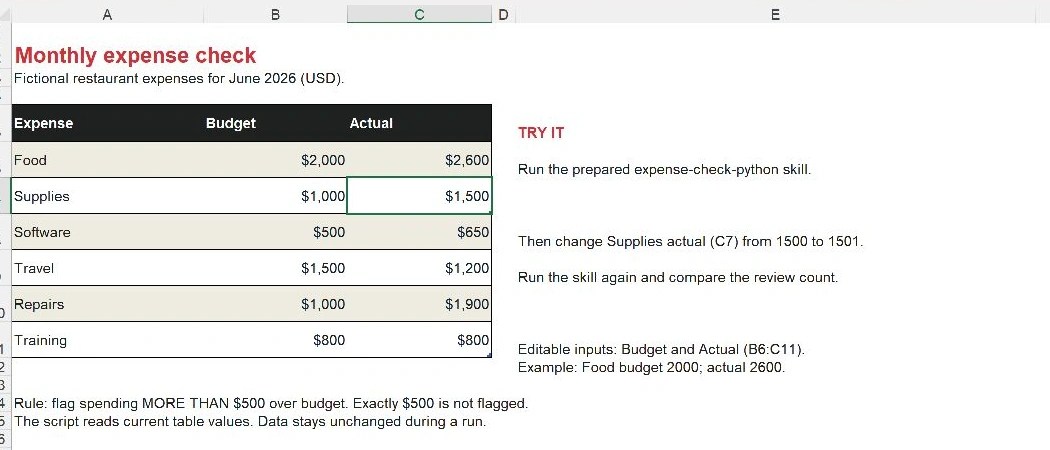
Our rule is deliberately specific: flag an expense only when Actual minus Budget is greater than $500. Exactly $500 does not qualify. Lower spending is not an overrun, even if its difference from budget is large. All amounts and this threshold are teaching examples.
2. Find the two files that make up the skill
In the extracted download, open expense-check-python. You will find SKILL.md and a folder called scripts. Inside scripts is check_expenses.py.
expense-check-python/
    SKILL.md
    scripts/
        check_expenses.py
You can open either file in a plain-text editor such as Notepad to see what is inside. Leave the files unchanged for this first run.
Most of the Python file handles reading and checking data. These two lines contain the rule we care about:
over_budget = actual - budget
needs_review = over_budget > threshold
The first line calculates the overrun. The second compares it with threshold, which the skill sets to 500. The result of that comparison is True or False; the report will show it as Yes or No. Because the comparison uses > rather than >=, an expense exactly $500 over budget stays unflagged.
You do not have to study every line to use the example. What matters is that this logic lives in a saved file, and the skill explicitly tells Copilot to execute that file unchanged. Merely placing a Python file beside a workbook would not establish that workflow.
3. Add the prepared skill to Copilot
In your practice workbook, open Copilot and use its settings menu. Microsoft's current skills guide covers the setup; labels can vary across Excel versions.
- Open Manage skills or Manage plugins & skills, then Custom skills.
- Create the OneDrive skills folder if needed, then open it. Your version may show Create OneDrive folder and Open skills folder, or an Add menu and a Skills OneDrive folder link.
- Copy the entire
expense-check-pythonfolder into it. Open the copied folder to confirm thatSKILL.mdsits directly besidescripts. Copy the skill folder itself, not the ZIP or the whole exercise download. - Let OneDrive sync, refresh the skill list, and enable the new skill if needed.
If Custom skills is missing, resolve access to that feature before continuing. Installing Python on your own laptop would not, by itself, give this Copilot session a Python execution tool.
4. Run the check
Return to python-skills-practice.xlsx. Paste this prompt into Copilot and send it. It is also saved under PASS 1 in practice-prompts.txt:
@expense-check-python Check tblExpenses on Data using the bundled Python script. Create ExpenseCheck and keep Data unchanged. Confirm the script you executed and the number of expenses flagged. If you cannot execute Python or read the script, stop and tell me.Copilot should run check_expenses.py and create ExpenseCheck. Look for its confirmation of the script name and execution tool as well as the worksheet result. We want evidence that the saved file ran, not just a plausible-looking table.
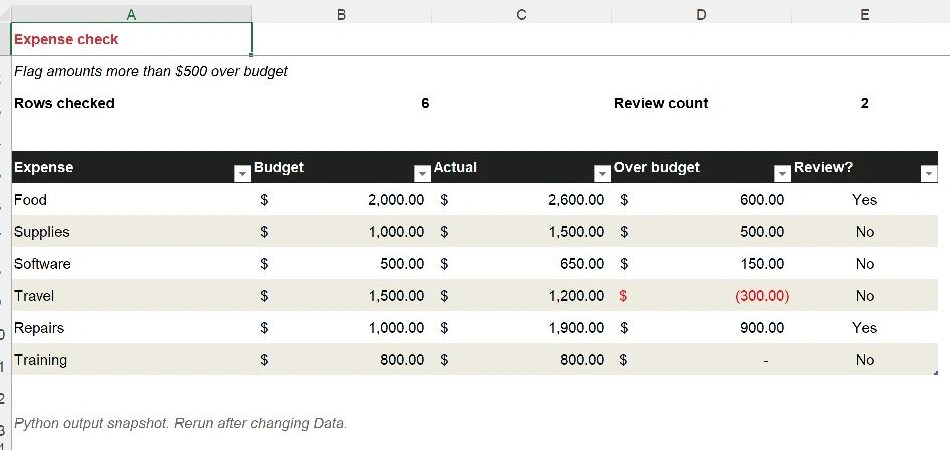
Check those three rows before moving on. Food should show $600 over budget and Yes; Repairs should show $900 and Yes; Supplies should show $500 and No. The other three rows should also remain visible, so you can see what was checked.
ExpenseCheck is a snapshot. After changing Data, run the skill again; the output cells do not recalculate as you type. This uses Python through Copilot, separately from Excel's =PY() worksheet feature, VBA, or Office Scripts.
5. Change one dollar, then rerun the same script
Click the Data tab. In cell C7, change Supplies actual spending from 1500 to 1501. Its budget stays at $1,000. You have moved from exactly $500 over budget to $501 over.
Now send PASS 2:
@expense-check-python Run the same script again on the current tblExpenses. Update ExpenseCheck. Keep Data unchanged and tell me what changed in the results.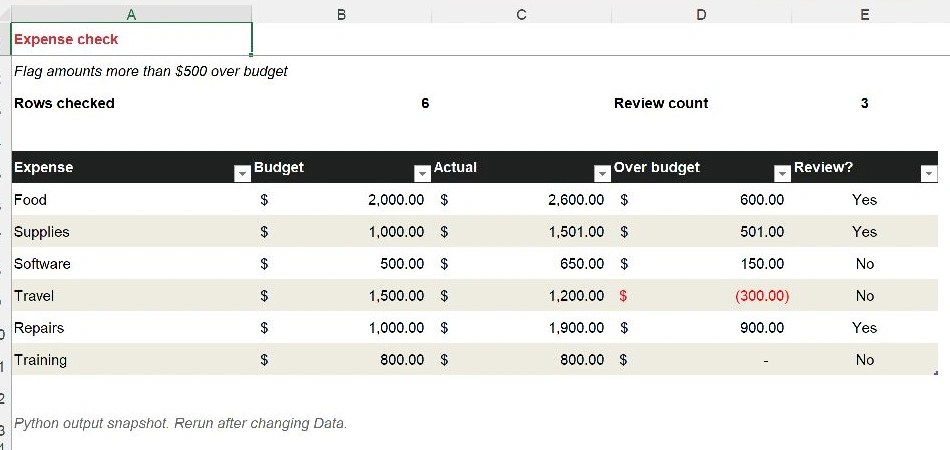
Supplies should now say Yes, and the flagged count should rise from two to three. Food and Repairs should still qualify. This is the same kind of boundary check I used in my custom fiscal calendar tutorial: June 30 and July 1 reveal whether the year-end rule works; $500 and $501 reveal whether this comparison works. A one-dollar change is not much of a restaurant budget story, but it is a very useful test of our code.
When is a script worth adding?
Start with a procedure you repeat and can describe clearly. My unmatched-invoices tutorial, for example, compares two tables and keeps exceptions from both sides visible. That is the sort of logic you could adapt into a skill's script once you have defined the matching keys and expected results. That tutorial uses Python in worksheet cells, so its data input and output would need adapting for this workflow.
If an existing skill already handles the job, use it. For a fixed workbook that should update as cells change, formulas or a template may be a better fit. A saved script earns its place when there is a procedure worth reviewing once and deliberately reusing.
This also brings us back to my old complaint about routine reporting. I was not especially subtle about it:
The concern was asking a generative model to recreate the same reporting process every month. A saved, reviewed Python script gives that part of the work a concrete implementation to run again. I make a similar case in my Get Data and Power Query article: use the conversation to help build the process, then keep the logic you have checked. Here, that reusable logic travels with the skill.
For your next experiment, pick one small repeatable check. Keep the input simple, save the code, and test what should happen at the edges. Then let the skill handle the conversation around that checked procedure. The GitHub exercise files include the practice workbook, prepared skill, and copy-ready prompts, with an optional missing-value check for one more useful job a script can handle.
Keep practicing with Copilot in Excel
My LinkedIn Learning course, Excel with Copilot: AI-Driven Data Analysis, is fully unlocked. The full course is free, and no account is required.