
You finally have Copilot producing a useful Excel report, and then someone asks for a slightly different version: fewer columns for the manager, different headings for a client, but the same calculations underneath. A small change to the report can turn into another round of explaining how you want the work done.
A skill saves those recurring instructions. Adding a JSON settings file lets you keep the procedure while adjusting specific choices, such as column names and layouts. If you regularly produce variations of the same report, that separation can make the whole setup easier to reuse and maintain.
To see how it works, we'll use fictional restaurant budget-versus-actual data to create a detailed review and a shorter manager view of the same figures. The download includes the practice workbook, a prepared skill and its JSON settings, so you can follow along without writing them from scratch.
Extract the ZIP before opening the files. No GitHub account or coding setup is needed; running the exercise requires an Excel account with Copilot workbook editing and Custom skills.
Before we open Excel, let's sort out what those files actually do. A prompt asks for a piece of work. A skill saves the instructions for doing that work again. JSON can hold the settings that let the same skill handle different versions of the job.
First, what is a skill?
Suppose you regularly ask Copilot to compare actual results with budget. Each time, you explain how to calculate the differences, which ones deserve attention and how the report should look. A skill saves that procedure so you can call it by name instead of pasting the whole explanation into every conversation.
For a custom Excel skill, those instructions live in a text file called SKILL.md, inside the skill's folder. The .md ending means Markdown: ordinary text with simple ways to mark headings and lists. The file identifies the skill and describes how to do the task. It can also tell Copilot to consult supporting files.
My hands-on introduction to skills in Copilot for Excel walks through built-in and custom examples. Microsoft's skills guide covers the current menus and required SKILL.md format. Here, the supplied skill is already prepared; you will install it and use @variance-review-json to call it.
What is JSON, in plain English?
JSON is a standard text format for organizing information as named values and lists. The initials stand for JavaScript Object Notation, but you do not need to learn JavaScript. A .json file is text you can open in Notepad or another plain-text editor. In this exercise, it holds report settings; it is not a program you run.
If you can read a small Excel table with Setting in one column and Value in the next, you have the right starting point. These two settings come from the supplied review-layout.json:
| Setting | Value |
|---|---|
| Worksheet name | Review |
| Report title | June 2026 variance review |
Here is the same information written as JSON:
{
  "worksheet_name": "Review",
  "title": "June 2026 variance review"
}
Read "worksheet_name": "Review" as the worksheet-name setting has the value Review. The colon connects the name to its value. Double quotes mark names and text, a comma separates the settings, and the outer braces group them together.
JSON can also hold numbers, true/false values and lists. For example, the full file contains a numeric font size and a list of report columns. Square brackets mark a list; the order of that list gives us a way to specify the column order. We will look at that part during the exercise.
The JSON introduction and format reference explains these building blocks. For now, you only need to recognize a setting and its value. The example above is an excerpt, not a replacement for the complete downloaded file.
How does JSON make a skill more useful?
A skill can keep its procedure and every setting in one document. That is a perfectly useful starting point. But imagine maintaining a detailed report for yourself, a shorter one for your manager and a different set of headings for a client. If you copy the whole skill for each version, a change to the calculation procedure now needs to be carried across those copies.
Adding JSON lets you separate how the work is done from the choices that vary. The skill keeps the calculation and checking instructions. A selected JSON file supplies the sheet name, column list, headings and formatting. You can change a heading or select a different layout without editing the procedure.
Think of moving a hardcoded assumption out of an Excel formula and into a labeled input cell. The formula is still doing the work, but the choice is easier to find and change. JSON plays a similar role for this skill. The step up is a reusable procedure with adjustable settings.
This also gives you specific things to check: did the output use the listed headings, in the listed order? Software can read JSON by those names, too, so a developer could add checks for missing settings or incorrect types. Those checks have to be built; the file format alone does not enforce them.
How the prompt, skill and JSON fit together
Use the variance-review-json skill with manager-layout.json.
Check the data. Calculate differences. Build and verify the report.
policy.json: which rows qualify.
manager-layout.json: which columns and headings to show.
SKILL.md tells Copilot to read and use these settings.
Keep the same procedure and data. Choose review-layout.json for 8 columns or manager-layout.json for 5.
That connection matters. Our SKILL.md explicitly tells Copilot what the settings mean and how to use them. Dropping an unrelated JSON file beside a workbook would not create that behavior. You still review the output, just as you would after any other Copilot request.
When is the extra settings file worth it?
| Your situation | A useful starting point |
|---|---|
| You need an occasional answer or report. | A regular prompt: describe this job. |
| You repeat a task with mostly the same instructions. | A skill: save the procedure. An Excel template may suit a fixed report. |
| You repeat the procedure but vary layouts, labels or other settings. | A skill plus JSON: keep the procedure and choose or edit the settings. |
Different client branding, analyst-versus-manager views and reporting rules that need occasional updates are good reasons to consider this approach. A task you will do once is a much weaker case: there is little to reuse, and now you have another file to maintain.
We will test one manageable version of that idea: the same skill, the same data and the same rules, with two report layouts. If changing the layout file changes the columns while preserving the figures, you can see what the separation buys you.
1. See the finished result, then open your practice file
Use the ZIP button above. After downloading, right-click the ZIP and choose Extract All on Windows, or double-click it on a Mac. Open the extracted excel-skills-json-demo-main folder. No GitHub account, Git software or Python is needed.
- Preview the destination. Open the
live-examplefolder, thenjson-skills-completed.xlsx. Click the Review and Manager worksheet tabs at the bottom. Notice that Manager has fewer columns, but the same eight rows. Close this completed example without editing it. - Open your starting file. Return to the top-level folder and open
json-skills-practice.xlsx. It should have just one worksheet, Data. Use this workbook for the rest of the exercise.
The Data sheet has 12 rows for a fictional restaurant business. Budget is what the business planned; Actual is what happened. The data is already an Excel table named tblLocationPnL. That is the table name the prepared prompts use, so you do not need to rename anything.

For example, Navy Yard sushi sales were $65,800 against an $80,000 budget: $14,200 below plan. The prepared rules select eight of the 12 rows for review. Both report layouts will use those same eight rows; a shorter manager view should not quietly lose an important item.
The finished examples cover selected revenue and expense categories, not a complete profit-and-loss statement. All figures and supplied business explanations are fictional.
2. Find the skill and its settings
In the extracted download, open variance-review-json and locate SKILL.md. That is the procedure. Open the references folder beside it to find the JSON settings.
Right-click review-layout.json and use Open with to choose a plain-text editor such as Notepad. Find worksheet_name and title, the two settings we read above. Leave the file unchanged for this first run.
The files have different jobs. policy.json supplies the rules for selecting rows. review-layout.json supplies the detailed layout; manager-layout.json supplies the shorter layout. We will hold the policy steady and change only the chosen layout.
3. Add the prepared skill to Excel
Open the practice workbook in an Excel account that offers Copilot workbook editing and Custom skills. Save a working copy to OneDrive or SharePoint if your Copilot experience asks for that. Then add the skill:
- In the Copilot settings menu, open Manage plugins & skills or Manage skills, then Custom skills.
- Use Create OneDrive folder if this is your first custom skill, then Open skills folder. Depending on your version, these controls may instead appear as Add > Add in OneDrive or Skills OneDrive folder.
- From your extracted download, copy the entire
variance-review-jsonfolder into the OneDrive skills folder. Copy that folder, not the ZIP or justSKILL.md. When you open the copied folder, you should seeSKILL.mdbeside thereferences,scriptsandassetsfolders. You do not need to run the scripts yourself. - Let OneDrive finish syncing, refresh the skill list, and enable both Custom skills and
variance-review-json.
If those controls are missing, check Microsoft's setup guidance. Skills currently require an English Office display language as well as access to the feature. Changing the JSON will not make a missing Custom skills menu appear.
4. Run the detailed report
In json-skills-practice.xlsx, select Data and open Copilot with workbook editing available. Paste the full prompt below and send it. You can also copy it from practice-prompts.txt in your download, under PASS 1.
The two JSON files do different jobs: policy.json supplies the rules for selecting rows, while review-layout.json supplies the report layout. We will keep the policy file the same throughout this comparison.
@variance-review-json Use tblLocationPnL on Data with references/policy.json and references/review-layout.json. Create the formula-based calculations and the Review worksheet. Before editing, identify the source table and both JSON files you can actually read. If a required file is inaccessible, stop and name it. Keep Data unchanged. Check the headers, row count, sorting, formats and documented drivers against the selected files.Copilot should create two sheets. Calculations holds the working formulas, and Review presents the eight selected rows. Start by looking at Review. It should have eight columns, including Budget, Actual, Variance $ and Variance %.

In the live test, the first pass got the rows, calculations and column structure right, but missed some font and color settings. A follow-up pointed Copilot back to the layout file and asked it to correct those mismatches while preserving the formulas. The screenshot shows that corrected result. JSON gives us a clear set of settings to check; it does not guarantee a perfect first attempt.
Pause and check three things
- The worksheet is named Review and its title matches the JSON.
- There are eight data rows. Navy Yard / Sushi comes first, with a ($14,200) dollar variance.
- Bethesda / Food and Navy Yard / Beverage say driver not documented. The skill should not invent an explanation.
5. Read a column entry in the JSON
Now return to review-layout.json and find columns. Notice the square brackets around its list of column entries. Each entry groups a field with a displayed header; their order in the list sets the column order. Here is one entry:
{"field": "Variance", "header": "Variance $"}Read it as "take the Variance values and label the column Variance $." field identifies the information; header is the heading people see. The surrounding list determines the column order. This is a choice you can now point to in a file instead of remembering which chat message described it.
6. Switch to the manager layout
In the same variance-review-json/references folder, open manager-layout.json. Its column list has five entries instead of eight. Find the entry for Variance; it keeps the same information but changes the displayed heading:
{"field": "Variance", "header": "Vs budget"}The budget, actual and percentage columns are omitted from this view. Location, line item, dollar variance, direction and documented driver remain. The file also requests a sheet named Manager. You are changing the presentation while keeping the source data and row-selection rules the same.
Return to the practice workbook and send this second prompt, also saved as PASS 2 in practice-prompts.txt. The selected layout file changes from review-layout.json to manager-layout.json; you do not install another skill or rewrite its calculation instructions.
@variance-review-json Use the same Data table and the same references/policy.json, but apply references/manager-layout.json to a new Manager worksheet. Preserve Review. Show all material rows. Confirm whether both views contain the same eight rows and figures. Report any mismatch with the JSON layout.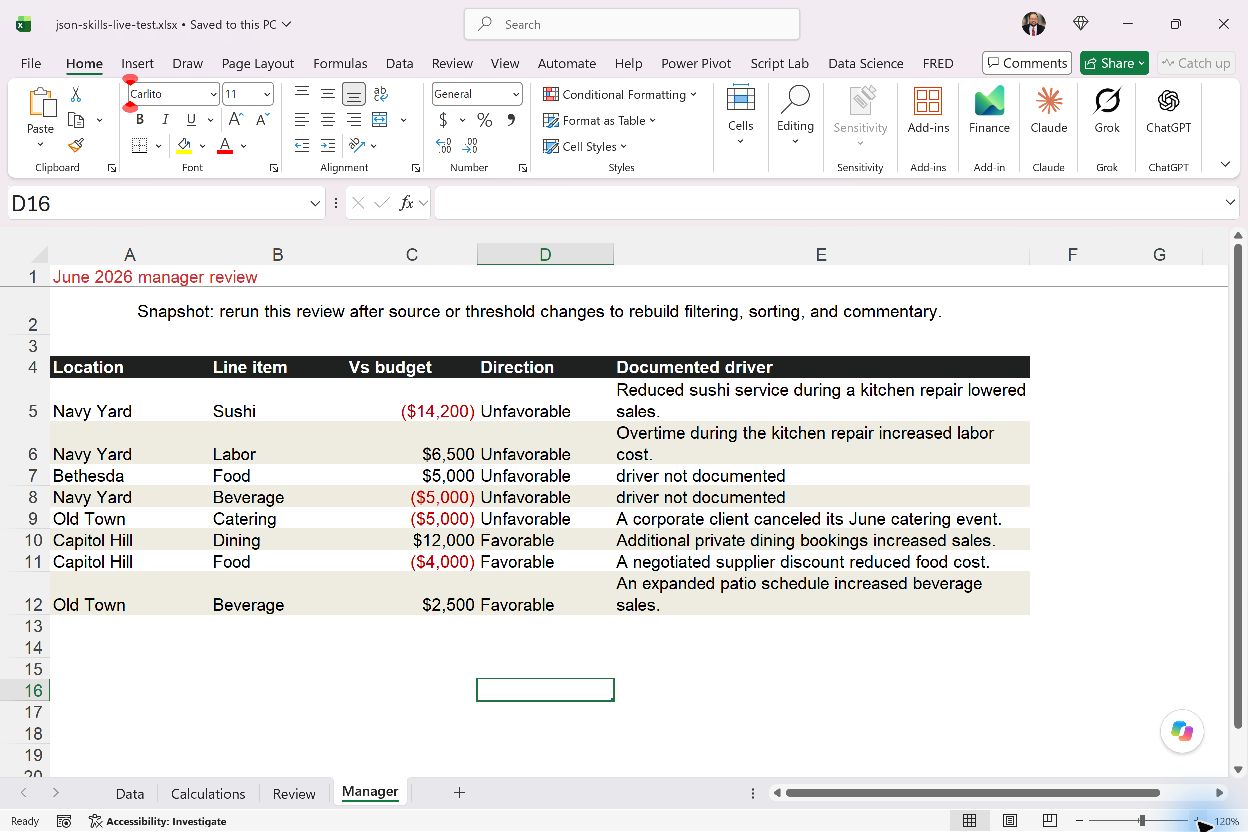
Click between the Review and Manager tabs. Here is the before-and-after to look for:
| Check | Review | Manager |
|---|---|---|
| Report columns | 8 | 5 |
| Selected data rows | 8 | The same 8 |
| Dollar-variance heading | Variance $ | Vs budget |
| Navy Yard / Sushi variance | ($14,200) | ($14,200) |
In the saved live workbook, both views contain the same rows in the same order, with matching figures and formula links; Data is unchanged. That is the practical benefit: you can give two readers different levels of detail while reusing the same review procedure.
Keep the Direction column in view. Lower revenue is unfavorable, while lower expenses can be favorable. Copilot colored negative values red in this run, but the $4,000 reduction in Capitol Hill food expense is favorable. The sign alone cannot tell the whole story.
When you are ready, change one value yourself
Imagine your manager prefers the heading Change vs plan. Open the manager-layout.json inside the installed OneDrive skill folder, not the spare copy in Downloads. Find this entry:
{"field": "Variance", "header": "Vs budget"}Change only the heading text so the entry becomes:
{"field": "Variance", "header": "Change vs plan"}Keep Variance, the quotes, commas and braces exactly as they are. You are changing the label, not the calculation.
Save the existing file with its .json extension; do not save a new .txt copy. Let OneDrive sync, refresh the skill list, and send the prompt below. It is also saved as UPDATE MANAGER in practice-prompts.txt.
@variance-review-json Re-read references/manager-layout.json from the installed skill folder and apply its updated layout to the existing Manager worksheet. Keep references/policy.json unchanged. Preserve Data, Calculations and Review, and keep Manager's numeric formulas intact. Confirm that Manager uses the exact header from the JSON and still matches Review's eight rows and dollar amounts. If the updated file is inaccessible, stop and name it.Your check is simple: new heading, same eight rows, same dollar amounts. The supplied screenshots show the original label. If the heading stays the same, check that you edited the installed copy and that Copilot read it.
The layouts also contain number formats and Stringfest colors. You can explore those once the name-and-value pattern feels comfortable. That connects to my workbook-branding example and the accompanying "Is graphic design in Excel YOUR passion?" post. Even if it is, you probably do not want to renegotiate the header color every month.
What to take into your next report
The useful question is whether your process repeats while some of its choices change. If it does, a skill can hold the procedure and JSON can give those choices a clear place to live. In this example, the layout file determines which columns the same review procedure presents. In another skill, the adjustable choices might be approved brand colors or a reporting threshold.
Start with one choice you actually expect to reuse, such as a client's heading or a manager's column list. Keep the rest of the skill stable, change that setting and check the result. You still need the current installed file, valid JSON punctuation and a review of Copilot's work; our live example needed a formatting follow-up.
For a one-off job, a prompt may be enough. For a repeatable job with a few recurring variations, one skill plus clearly defined settings can save you from maintaining several slightly different versions of the same instructions.
The live-example folder keeps the completed workbook and exact formatting follow-up for comparison. supporting-files contains optional deeper checks; you can leave it alone for this walkthrough. Everything is also in the repository on GitHub.
Keep practicing with Copilot in Excel
My LinkedIn Learning course, Excel with Copilot: AI-Driven Data Analysis, is fully unlocked. The full course is free, and no account is required.