
For a while, using AI in Excel meant starting from scratch every time. You would explain what you wanted, Copilot would take its best guess, you would correct it, and the next day you would go through the same routine again.
Skills help with that. A skill is basically a saved set of instructions for a repeatable task, so Copilot already knows how you want the work done instead of making you explain the whole process every time.
Microsoft started with finance skills, which makes sense. Finance work tends to demand more from Excel. Numbers need to trace back to a source, the method needs to be visible, and you need to be able to review what changed before signing off. If skills can work there, they should be useful in plenty of other places too.
In this post, I will first turn on one of the built-in finance skills and put it to work. Then I will build a custom skill of my own for a task Microsoft does not already cover. I have also included a workbook so you can follow along and try each step yourself:
Using a built-in finance skill
Underneath it all, a skill is just a plain text file. Microsoft uses an open format called SKILL.md, and each skill sits in its own folder with one of these files inside. We will pull one apart later when we build our own.
Copilot in Excel includes a library of finance skills for three-statement models, comps, LBOs, model updates, unit economics, and more. These are included with a Microsoft 365 Copilot license.
To see which skills you have available, open the Copilot pane, click the three dots in the upper-right corner, and choose Manage skills. Each skill has its own toggle. Here, I have the unit economics skill turned on next to a small set of inputs for a subscription business.

Let us put it to work. The Unit Economics sheet includes five inputs: new customers this month, sales and marketing spend, average revenue per customer, gross margin, and monthly churn. I select that block, open Copilot, and ask it to run the skill.
In the Copilot pane, enter:
“Using the inputs on this sheet, run @unit-economics. Calculate CAC, LTV, the LTV to CAC ratio, and CAC payback, and tell me whether these unit economics look healthy.”

Copilot loads the skill’s instructions, reads the inputs I selected, and works through the calculation. It first lays out what it plans to do before writing anything to the sheet. You can see the logic before the numbers start appearing.

Here is what came back. Copilot calculated CAC, LTV, the LTV-to-CAC ratio, and CAC payback, then added a short read on whether the numbers looked healthy.
Everything is formula-driven, so you can audit the work, understand how each number was calculated, change the inputs, and check the results yourself. This is much more useful than getting a few numbers back in the Copilot pane with no clear path to how they were produced.
That may raise an obvious question: why not just build a template and reuse it instead of having a skill recreate the analysis each time? Fair question. For a standard analysis that always looks the same, a template may be the better tool. A skill becomes more useful when the situation varies a little each time, such as different source layouts, additional inputs, unusual requirements, or different client branding. You can keep the method consistent without forcing every workbook into the exact same template.
Building your own custom skill
The built-in finance skills are a strong start, but most repeatable work is specific to the job. That is where custom skills come in, and they are easier to build than you might expect.
Here is one I made for monthly variance commentary, the budget-versus-actual write-up every FP&A team produces a little differently. Microsoft does not include this one, so it is a good example of building what is not already in the box. This is the whole skill:
A custom skill is just a folder containing one file called SKILL.md. That file has two parts.
The first is the frontmatter, the metadata between the three-dash lines at the top. It includes a name and description. The description matters most because it tells Copilot when to use the skill. That is why mine reads like a trigger: “Use when I ask for a monthly variance analysis or budget-vs-actual commentary…” A vague description gives Copilot less to match against.
The second part is the body, which tells Copilot how to complete the task. Microsoft does not require a specific format here. You can use headings, steps, or plain paragraphs.
In this example, the body defines the comparisons to run, the materiality threshold, the structure of each comment, the writing style, and the final layout. Those are the judgment calls that make one team’s variance commentary different from another. There is no code. The skill is simply the process written clearly enough for Copilot to follow consistently.
Custom skills live in OneDrive. In the Copilot pane, go to Settings, Manage skills, and then Custom skills. Create or open the skills folder, then add one subfolder per skill, each containing a SKILL.md file.

If you haven’t worked with Markdown before, it uses plain characters to format text. On the left, you see the raw text. On the right, you see how it renders.
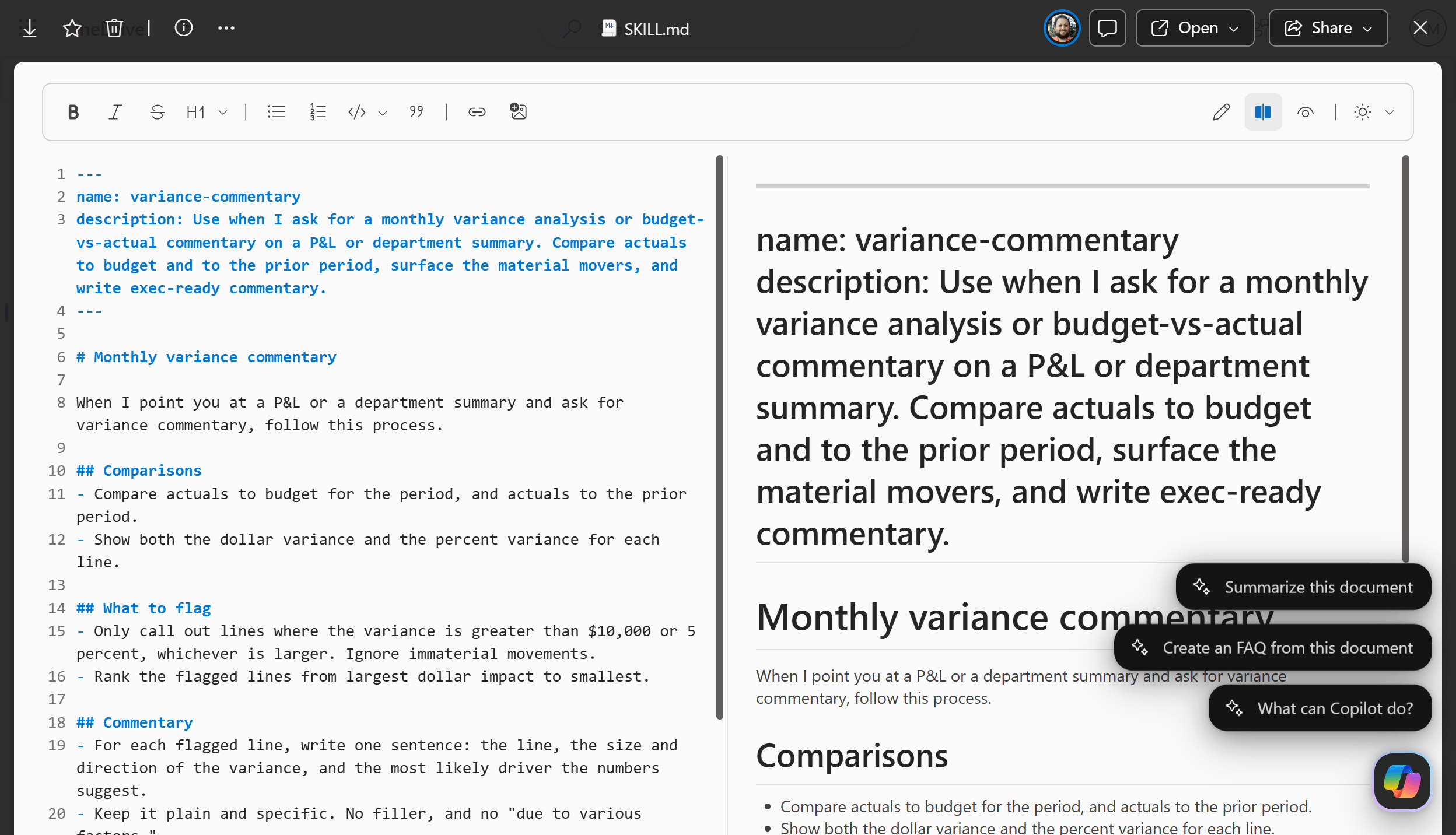
To use the skill I showed above, click View Raw. A new tab will open with the raw Markdown, which you can copy into your own skill. To learn more about Markdown, visit https://www.markdownguide.org/.
After adding or renaming a skill, click Refresh inside Manage Skills in Excel. From there, you can turn it on or off, or call it directly with something like @variance-commentary.
Now finally, the payoff. The P&L Variance sheet has actuals, budget, and prior month side by side. I open Copilot and call the skill:
Run @variance-commentary on this P&L.

Copilot calculates the variances, applies the threshold, and writes up the lines worth mentioning.
It’s easy enough to subtract budget from actual. The useful part is having Copilot follow the same rules every month about what counts as material, what gets mentioned first, and how the commentary should read.
In this case, revenue came in ahead of budget, while higher sales and marketing and G&A spending pushed operating income below plan. Next month, I can run the same skill again without explaining the process all over. Or, once I am happy with the report, I can reuse the formula-driven section as a template and have Copilot fill in the commentary. There are plenty of ways to work with it.

Conclusion & next steps
I hope this demo gave you a clearer sense of what Copilot skills can bring to an Excel workbook. You can download the finished workbook here.
One thing you may notice is that Copilot’s analysis does not match the formatting used elsewhere in the workbook. That is intentional. A skill tells Copilot how to perform a task. It does not necessarily carry your workbook’s formatting conventions.
For that, you can use custom instructions, the Rules worksheet or the new branding skill. Those features can apply your preferred formatting and style automatically. I left them out here so you could see exactly where the skill ends.
As you are seeing, there is a lot more to learn about Copilot in Excel. I have collected my main resources here:
I also put the full skills workflow on one page: how to tell whether something is a skill, how to enable a built-in skill, and how to build your own. Keep it nearby the next time you work with Copilot.