
Your workbook tells you that travel expenses came in $5,000 under budget. Lovely. But did somebody negotiate a better rate, cancel a trip, or simply move it into next month? Excel can calculate the difference down to the penny. The explanation may be sitting in a meeting transcript that never made it into the workbook.
This is where grounding becomes useful. You give Copilot relevant source material so it can work with the context behind the numbers. You can also give it a strong example of the kind of work you want to produce: a clear management report, a well-designed workbook, or commentary that your team actually found helpful.
I think of this as a combination of knowledge management and a Pinterest board for your work. One collection helps answer “What do we know?” The other helps answer “What does good look like?” Fortunately, neither requires you to spend the afternoon choosing a farmhouse kitchen.
In my post on beginner, intermediate, and advanced Copilot in Excel use, I describe the move toward more deliberate workflows. Choosing the right supporting files is a practical way to make that move. You don’t need to become a programmer; you need to get better at briefing the tool.
What grounding adds to your Excel work
Grounding means giving an AI response a basis in relevant information. In this walkthrough, that information comes from the open workbook and two files we deliberately attach. The result should connect the calculations to documented business context, with enough source detail for you to check the explanation.
Without the meeting notes, Copilot might suggest perfectly plausible reasons for a variance. Those can be useful hypotheses, but they aren’t evidence of what happened in your business. If the transcript says a supplier visit moved to November, you can explain the October travel underspend as a timing difference instead of celebrating a permanent saving that disappears next month.
This is also different from creating an external link in an Excel formula or importing a table with Power Query. We are supplying material for Copilot to read while doing the task. Attaching a document does not, by itself, add its contents to worksheet cells or establish a refreshable data connection.
Think like a knowledge manager, then like a curator
For the knowledge management side, start with the small set of sources that someone doing the job would actually consult. That could be the current meeting transcript, a project brief, the approved budget assumptions, or a document explaining what your department means by “active customer.” Clear filenames, reporting periods, and version labels help you choose the right material before Copilot ever sees it.
You don’t need to upload the departmental attic. Three well-chosen files with clear roles are often a better briefing than a pile of vaguely related documents. If two sources disagree, tell Copilot which one governs the task and ask it to flag the conflict. A confident summary of an outdated policy is still an outdated policy.
Then there is the Pinterest side. Keep examples of work you admire and can reuse: a concise variance explanation, a chart with an effective title, or a workbook whose layout makes the next action obvious. Give Copilot the example and explain what you like about it. “Use this report’s amount, explanation, and follow-up structure” is much more actionable than “Make this amazing.”
I made a related point on X about all the hours we spend applying fonts, fills, chart styles, and logos after the analysis is already finished. Having an example worth reusing makes that effort easier to describe:
Is graphic design in Excel YOUR passion?
Maybe not, but I'd venture to guess you've spent far more hours than you'd ever admit at a party meticulously applying fonts, colors, header fills, chart styles, and logos to a workbook that was already analytically finished.
That's the… pic.twitter.com/XJpxMACd5Y
— George Mount (@gjmount) August 5, 2026
The same approach works for the commentary that accompanies a report. Let’s try it with a short writing sample and some meeting notes that explain what the workbook’s numbers can’t.
Try it: explain an expense variance with two supporting files
I’ve put together a small, fictional October expense review. The workbook contains the numbers, a meeting transcript explains several variances, and a separate commentary example shows the desired writing approach. Everything you need is in the download; no GitHub account or coding setup is required.
You can also browse the standalone GitHub repository. Extract the ZIP before opening the files. The package contains one workbook, the two source documents, copy-ready prompts, and a short README.
I tested this in desktop Excel with paid Copilot and a work account. Copilot menus and capabilities can vary by account, organization, and rollout, so look for the equivalent file or content attachment controls in your version.
1. Open the workbook and inspect the sources
Open grounding-practice.xlsx and save a working copy. Use OneDrive or SharePoint if your version of Copilot requires the workbook there. The October expenses sheet contains an Excel table named tblExpenses, with budget, actual, dollar variance, and percentage variance. Here, variance is actual minus budget, so a positive expense variance means over budget.
Open the two text files as well. october-review-transcript.txt records a November 3 meeting about October 2026. It explains delayed hiring, a postponed supplier visit, an additional marketing campaign, and a software onboarding fee. Freight is deliberately left unexplained.
commentary-example.txt describes a facilities repair from a different period. Its job is to demonstrate the writing structure, not to supply facts for October. That distinction matters: the example’s $4,000 repair should never wander into this month’s commentary just because the prose sounded nice.
2. Attach the files in Copilot
Open Copilot in Excel and select the + button beside the prompt box. In the version shown below, choose Upload images and files, then select october-review-transcript.txt and commentary-example.txt. Wait for both attachments to finish loading before sending your prompt.
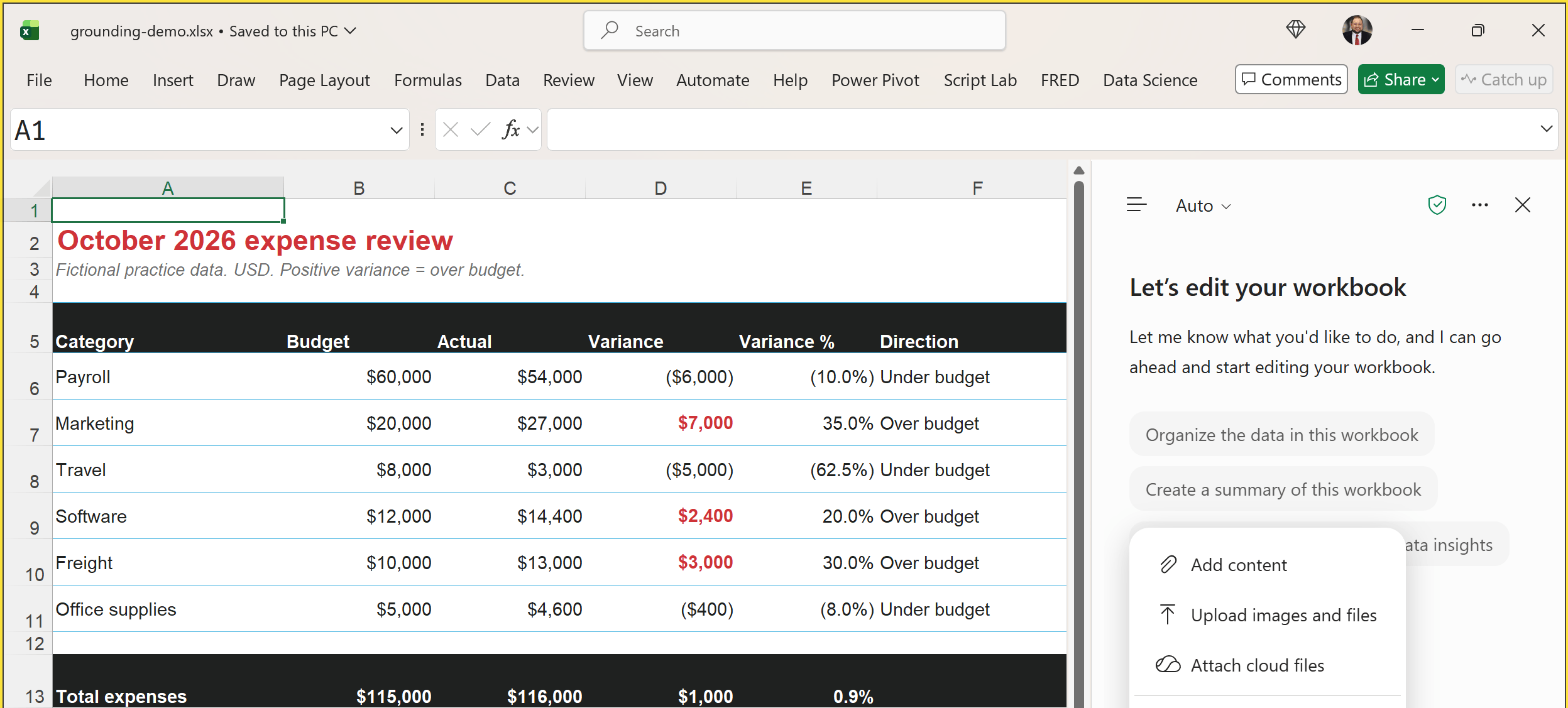
For material already maintained in OneDrive or SharePoint, use Attach cloud files or the available content picker to select the existing document. Microsoft’s guide to referencing files explains the local upload and cloud file options. Typing a filename into a prompt is not a substitute for making the file accessible.
For this exercise, open the mode menu above the prompt box and choose Chat only. In my version it initially showed Allow editing. We want to review the explanation in the conversation before deciding whether it belongs in the workbook.
3. Give each source a specific job
Paste the first prompt from practice-prompts.txt. Notice that it asks Copilot to identify the files it can actually read before analyzing anything. It also separates the source of the numbers, the source of the explanations, and the source of the writing style.
Use tblExpenses in the open workbook as the source of October amounts. Use october-review-transcript.txt for documented explanations and commentary-example.txt only for structure and tone, never its facts. First identify both files you can actually read and the reporting period. If either file is inaccessible, stop and name it. Draft a concise October expense review in this chat. Start with the total budget, actual and variance. Discuss each category with an absolute dollar variance of at least $2,000. Include amount, direction, documented cause, transcript timestamp and a follow-up. Distinguish timing from recurring savings. Where evidence is missing, say so rather than guessing. Do not edit the workbook.The $2,000 threshold keeps the review focused, while the request for timestamps gives you a route back to the evidence. “Distinguish timing from recurring savings” tells Copilot what matters about the explanation. These details do more useful work than adding another “act as a world-class analyst” to the front of the prompt.
4. Check the explanation, then refine the writing
First, check the total: the budget is $115,000, actual expenses are $116,000, and the overall result is $1,000 over budget, or about 0.9%. That modest total masks several larger movements in opposite directions.
Five categories meet the absolute $2,000 threshold. Payroll is $6,000 under budget because a hire started later (02:10); travel is $5,000 under because a visit moved to November (06:05). Both are timing differences. Software is $2,400 over because of a one-time onboarding fee (07:50). Marketing is $7,000 over because of an additional approved campaign, whose return is not yet established (04:25).
Freight is the useful test. It is $3,000 over budget, but the transcript does not establish why. The appropriate next step is for Operations to review the invoices (09:15). If your answer announces that fuel prices caused the overrun, the answer has outrun its evidence. Similarly, the $400 office supplies underspend is below our threshold and has no documented business explanation.
Once the substance checks out, run the second prompt in the same conversation:
Tighten this to about 200 words. Keep all five material categories, the total, the documented explanations and the open freight question. Cite the transcript timestamps in parentheses, but omit local file paths from the prose. Use connected paragraphs in the style of commentary-example.txt. Do not edit the workbook.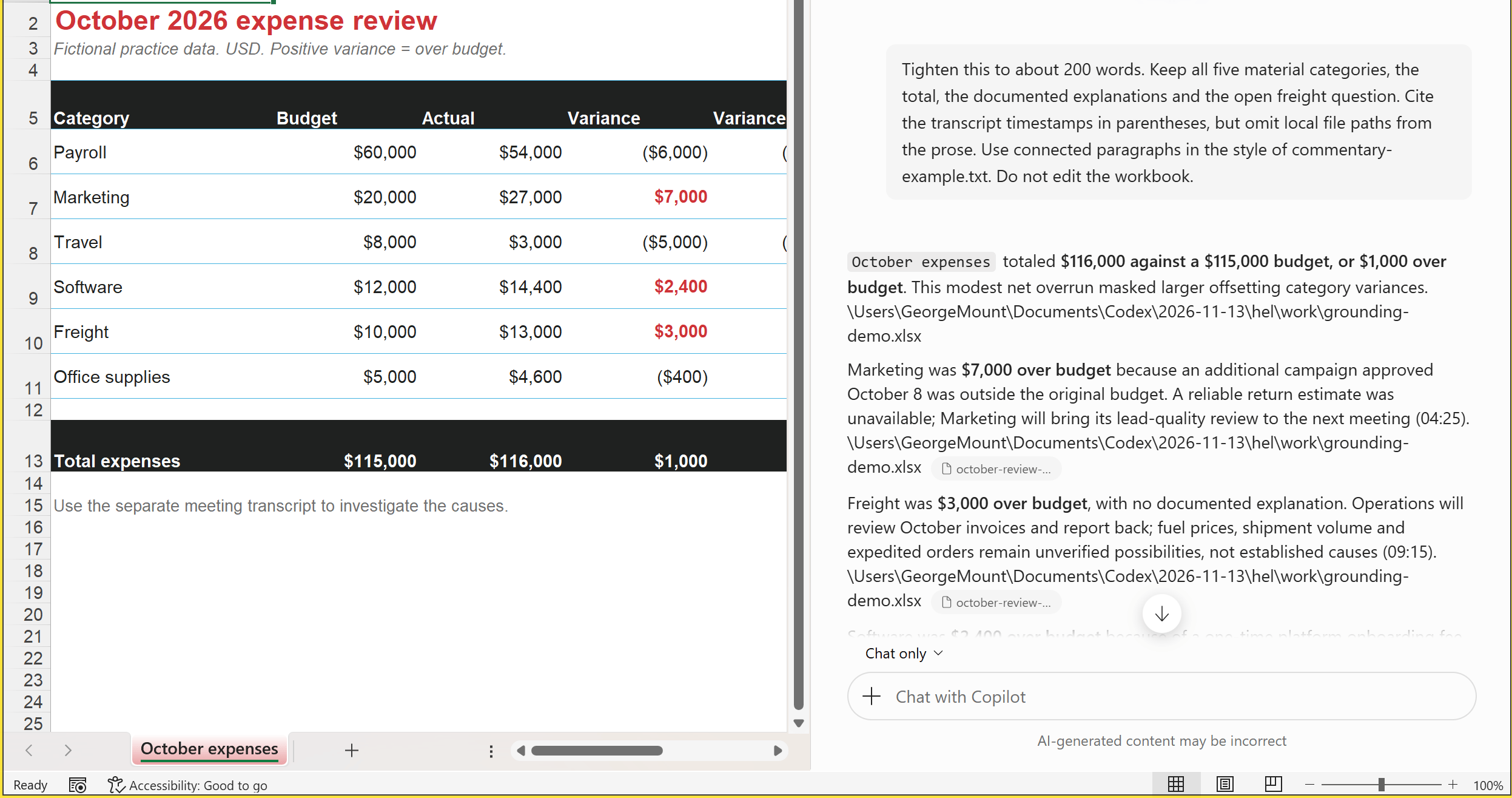
In my run, Copilot read both attachments and kept the unknown freight cause separate from the documented explanations. It also included some ungainly local source paths, even after I asked it to omit them. Treat the response as a draft: check the source references, tidy the presentation, and make sure the final commentary still says what the evidence supports.
Where do uploaded files go in OneDrive?
When you choose Upload images and files from your device, Copilot saves a copy in OneDrive. For the work account used in this walkthrough, both text files appeared in My files > Microsoft Copilot Chat Files. That is the folder name to look for, rather than a separate folder created for each workbook. Microsoft’s documented upload example identifies the same location.
The original local file stays where it was. Because you uploaded a copy, later edits to that local original are not automatically edits to the uploaded version. For an ongoing process, selecting the maintained cloud document can reduce confusion about which version you intended to use. You should still check the selected file and reporting period when starting the next review.
That common folder can collect uploads from different conversations, so give sources meaningful names and review the folder periodically. You can manage the uploaded copies in OneDrive; don’t assume that closing the workbook removes them. Uploading a file also doesn’t embed it in the workbook for everyone who later opens the spreadsheet.
Think of OneDrive as storage, and the attachment or reference in your prompt as your selection of context for this task. Merely having a file in that folder is not a promise that every future Copilot conversation will read it. Grounding gives the current task relevant information; it doesn’t train a permanent personal model on your upload.
Keep the approach for next month’s review
The first time through, attaching a few files is enough. If you find yourself doing this review every month, you’ll probably want to keep the same commentary structure and checking rules while swapping in fresh numbers and meeting notes. A Skill lets you save those recurring instructions so you don’t have to rebuild the briefing each time. That repeated briefing was the frustration behind this post on X:
How many times have you explained the same Excel task to Copilot?
You describe the method, correct the output, clarify the formatting, and then do it all again the next time.
Skills are designed to fix that.
A skill gives Copilot a saved set of instructions for repeatable… pic.twitter.com/jsWhrDUfsE
— George Mount (@gjmount) August 6, 2026
For this exercise, the reusable part would be the $2,000 threshold, the request for documented explanations and timestamps, and the structure of commentary-example.txt. A custom Skill can keep that example in a references folder, with instructions that explicitly tell Copilot to read it and borrow its approach. Microsoft’s Skills documentation explains how to include those supporting files.
The workbook and meeting transcript would change with each reporting period, so the saved instructions stay useful as the facts change. If this becomes a regular workflow for you, my guide below walks through turning the method and its reference files into a Skill:
Give your next analysis one useful source
For your next Copilot task, choose one piece of context the workbook doesn’t contain and one example of work you’d like to emulate. Explain the job of each source, then check whether the answer used it correctly. That is a manageable next step toward better analysis, and it gives those carefully saved examples something useful to do besides gather digital dust.
If you’d like more practice, my LinkedIn Learning course, Excel with Copilot: AI-Driven Data Analysis, is fully unlocked. The full course is free, and no account is required.