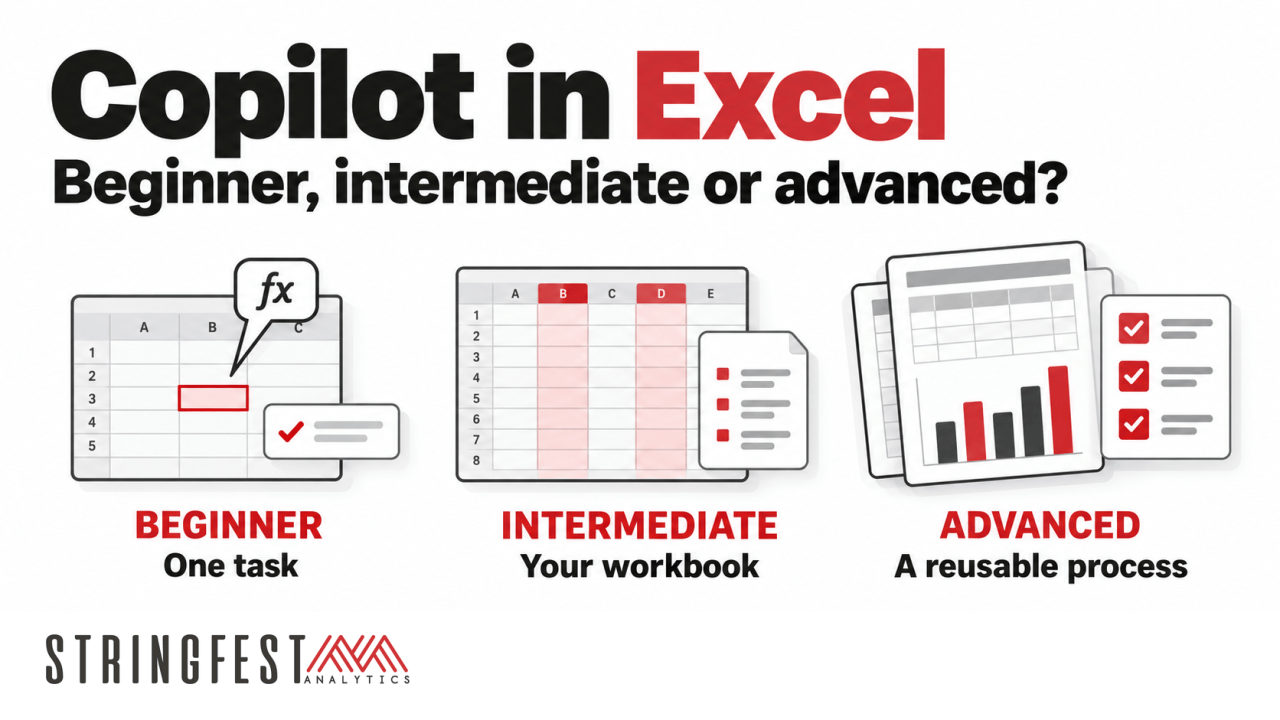
I recently received an inquiry about teaching a one-day intermediate Copilot class. It sounded interesting, but it also left me with a basic question: what would participants already know, and what would make the class intermediate?
This comes up all the time with Excel. Someone might use PivotTables every day and have never opened Power Query. Another person might write complicated formulas but struggle to explain how the workbook fits together. I’ve written about beginner, intermediate, and advanced Excel before, and I understand why people in the Excel world get frustrated with these labels. We don’t all learn the same things in the same order.
Adding Copilot makes the question even more interesting. You can produce something impressive with very little experience, especially if someone has handed you a good prompt. But what happens when you try it on your own workbook? For this post, I’ll use Copilot in Excel as the focal point and follow a familiar reporting task through the three levels. That gives us something concrete to discuss before trying to classify everything Copilot can do across Microsoft 365.
Why bother with beginner, intermediate, and advanced?
I’ve even gone down the Google Trends rabbit hole on this one. In my post on our obsession with advanced Excel, I compared searches for beginner, intermediate, and advanced Excel. Here’s the comparison I shared in June 2025:
People still need to choose courses, and trainers still need to decide what belongs in them. As the familiar George Box line goes, “All models are wrong, but some are useful.” I think these levels can be useful as long as we explain what we mean by them and leave room for people to have different strengths.
There is another wrinkle with AI. Copilot is probabilistic, so repeating a request doesn’t guarantee the same response. The Excel formula it writes may calculate the same way every time, but the route Copilot takes to that formula can vary. Following a sequence of clicks, or getting one good answer, tells us only so much about someone’s ability to use it.
A useful reference here is Dakan and Feller’s AI Fluency framework, developed with Anthropic. Its four competencies are Delegation, Description, Discernment, and Diligence: deciding what to give AI, explaining the work, evaluating what comes back, and taking responsibility for its use. It isn’t a beginner-to-advanced ladder, but I like that it gives judgment and responsibility a place alongside prompting.
A working definition of the three levels
For Copilot in Excel, I’d start with the following distinctions. Think of them as a way to plan the next exercise, rather than a permanent rating for the person taking it.
| Level | What the learner can do | An Excel example |
|---|---|---|
| Beginner | Complete a small task with guidance and check the result. | Calculate a variance and check a few rows by hand. |
| Intermediate | Adapt the task to their own workbook and work through problems independently. | Apply the right reporting period and business rules, then reconcile the summary to the source. |
| Advanced | Build and maintain a process that other people can use again. | Create a monthly reporting skill, test unusual cases, and explain how to review its output. |
Checking the result appears at every level. The difference is how much help someone needs and how much complexity they can handle. A beginner doesn’t need to audit an entire reporting process, but they should be able to tell whether a simple answer makes sense.
Beginner Copilot in Excel: work through a small example
Let’s say we’re preparing a budget-versus-actual report. A beginner might ask Copilot to calculate the difference for each department, explain the formula, or help create a chart. To get a useful result, they’ll need to say what they want, point Copilot to the relevant data, and describe what the output should look like.
Even this small example needs some thought. If budget is $100 and actual is $120, Actual minus Budget gives us $20. Is that good or bad? For expenses, we may be over budget. For revenue, we may be ahead of plan. Before asking Copilot for a formula, the learner needs to understand what the calculation is supposed to mean.
I’d have them work through a few rows themselves, then compare those answers with Copilot’s. If something differs, we can investigate it together. Asking Copilot whether its own answer is correct can help start that discussion, but it doesn’t replace an independent check.
Copying data into a chat and pasting the response back into Excel is a reasonable place to begin. I wouldn’t make it a requirement, though. Microsoft’s getting-started guide for Copilot in Excel also covers planning and editing, including tasks with multiple steps. A beginner can try those features on a small practice workbook with guidance. The learning goal is to understand the request and the result, whichever interface they use.
Intermediate Copilot in Excel: adapt it to your work
At the intermediate level, I’d expect someone to take that exercise back to their own workbook and make it work there. Their data might have a different layout, more departments, or a mixture of revenue and expense accounts. They can explain those differences to Copilot and investigate a result that doesn’t look right without needing a new set of instructions from the trainer.
For our variance report, that means choosing the correct month, defining favorable and unfavorable variances, and deciding which differences deserve commentary. It also means checking that the totals agree with the source. If a department is missing from the summary, can they work out why? If Copilot says costs rose because of overtime, can they find evidence for that explanation in the information supplied?
This is where grounding becomes more than an AI vocabulary word. We need to give Copilot the information it should base its answer on. That could include the workbook, reporting instructions, or notes explaining changes during the month. Attaching a file is a start, but we still need to check that it’s the right version and contains what the task requires.
We can also stop repeating some instructions in every prompt. As I explain in my post on personalization versus workbook rules, personal preferences can follow you across Excel sessions, while workbook rules stay with the file. Microsoft documents these in its guides to personalization and the .Rules worksheet. A preference for a certain date format might belong in personalization; the variance definitions everyone using this report needs should stay with the workbook. Either way, I would check that Copilot followed the instructions.
Understanding how to choose a model in Copilot can fit here, too, when that choice is available. I’d be more interested in someone comparing results on their actual task than memorizing which model supposedly wins at everything. Microsoft’s Excel tips describes the Auto option and model picker. If Auto does the job well, there is no extra credit for changing it.
Advanced Copilot in Excel: make the process reusable
Now suppose this report needs to go out every month, and someone else has to prepare it while you’re away. That’s where I would start the advanced conversation. Can you turn the work into a process another person can understand, run, and check?
A Copilot skill can package instructions and supporting resources for a recurring task. Our reporting skill might check for the required columns, apply the variance definitions, and produce a table of items needing commentary. It should flag a missing explanation rather than fill the gap with a convincing guess. My introduction to skills in Copilot for Excel walks through the idea, and my JSON skills example shows how settings can change the output of a reporting task.
Running an existing skill may be quite straightforward. Building one that works well takes more thought. What happens when budget is zero? What if a department has no actuals this month? Will the instructions still make sense after someone renames a column? I’d want the learner to test those cases and explain what a colleague should review before sending the report.
I’d also want them to consider which steps need AI at all. If the calculation should work the same way every month, reviewed formulas, Power Query, or code might be a better home for it. Copilot can help create or explain those steps, while helping draft the commentary around the checked figures. Sometimes the answer to an advanced Copilot question is a Power Query refresh. As an Excel trainer, I can live with that.
This is why I wouldn’t define advanced use as a list of features such as skills, agents, or connectors. Those can be useful, but the harder work is deciding what the process should do, finding where it goes wrong, and keeping it useful as the workbook changes.
How would I assess this in a training session?
I’d keep the reporting question roughly the same and change the support available. A beginner gets a small, prepared workbook and a few known answers to check. An intermediate learner gets a similar workbook with something to investigate, such as an omitted department or an unclear variance definition. An advanced learner develops the recurring process and tests what happens when the inputs change.
Along the way, I’d ask them to explain which data they used, how they checked the answer, and what they would do if it didn’t agree with the source. Working through another example tells us much more than seeing one polished output. It also gives the learner a clearer idea of what to practice next.
This connects with the Learn, Confirm, Extend approach I’ve been exploring for teaching Excel alongside Copilot. People learn the underlying concept, practice and check their understanding, then use Copilot to take it further. I shared some of that thinking in this post:
There is plenty of data literacy in these exercises, too. Understanding a measure, identifying the right records, and deciding whether an explanation is supported all matter. We can build those habits while people learn Copilot, starting with the first small example.
Where does broader Microsoft 365 Copilot training fit?
The original inquiry didn’t specify Excel, and that’s worth keeping in mind. Microsoft’s one-day MS-4018 course, Draft, analyze, and present with Microsoft Copilot, is labeled Intermediate and covers several Microsoft 365 applications. An intermediate course can reasonably mean something broader than the Excel work I’ve described here.
For finance and operations teams, that broader work often follows naturally from the spreadsheet. Once we’ve checked the figures, someone needs to explain them in a management update, prepare slides, or draft an email. I’ve written about designing Microsoft 365 Copilot training around that reporting process. Tools such as Copilot Cowork can support work across applications, but we still need to make sure the figures and their qualifications survive the trip.
I’d use Excel as the starting point for this framework and agree on the wider scope with the team taking the training. What do they need to produce, what can they already do, and which features can they access? Those answers give us a much better basis for a class than the word “intermediate” on its own.
Copilot training for your team
I deliver Microsoft 365 Copilot training for finance and operations teams, with particular depth in Excel, data analysis, and reporting. If you’re planning a class, tell me who it’s for and what you’d like them to be able to do afterward. We can work out the level and scope from there.
If you’d like to get started on your own, my LinkedIn Learning course, Excel with Copilot: AI-Driven Data Analysis, is fully unlocked. The full course is free and no account is required.