
You open Copilot in Excel to get some work done….
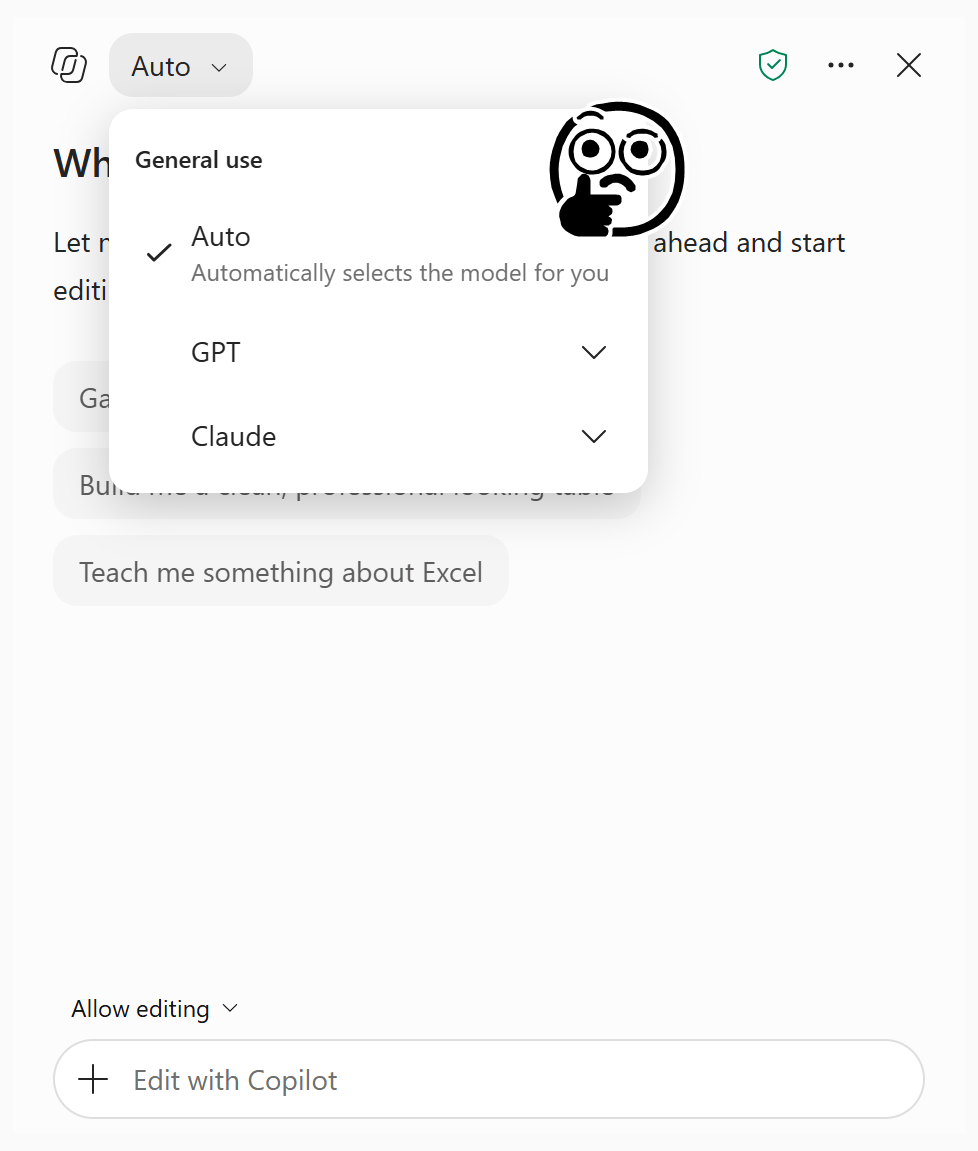
Now there’s another decision to make: which AI model should you use?
Microsoft is adding more choices. In September 2026, it announced Grok models in a Frontier preview for Word, Excel, and PowerPoint. Organizations must enable a dedicated admin setting, which is off by default.
Microsoft’s own models are part of the story, too. In July, Microsoft reported a specialized MAI model already deployed in Excel. Deployment behind the scenes doesn’t establish that you’ll see a corresponding choice in your model menu.
So how should you approach model choice in Copilot in Excel when the options keep changing? Here are a few principles to guide you.
Before we continue, keep in mind that the model switcher for editing with Copilot in Excel requires a commercial Microsoft 365 Copilot subscription or Microsoft 365 Premium. Having access to some Copilot features doesn’t establish access to this switcher.
To find it, open Home > Copilot and look for the model switcher while editing is enabled. It may be inside the settings menu. Auto lets Copilot select a model. Microsoft notes that a manual choice applies to the active session; enterprise Claude access also requires administrator enablement.
The model is just one piece of the experience
Copilot is where you ask questions, work with your spreadsheet, and review changes. An AI model interprets your request and helps generate a response or plan the work.

Changing models can affect how quickly you get a response, how the task is approached, and the result you receive. But the model still needs a clear request, relevant information, and the tools available in that Copilot experience.
Selecting a different model doesn’t supply a missing definition of revenue. It doesn’t tell Copilot that your fiscal quarter ends in February. And it doesn’t turn a sales decline into a documented explanation of what caused it.
Start with Auto, then identify a reason to compare
My default recommendation is to leave the picker on Auto for most work. Establish what it can do before adding another decision to every prompt. For straightforward tasks, you may care most about a quick, usable response: explaining a formula, drafting a short summary, or suggesting a chart.
For more involved tasks, you may want to try a model positioned for deeper reasoning: investigating inconsistent totals across sheets, checking a chain of assumptions, or evaluating several possible explanations for a change.
As an illustration of these categories, Microsoft’s Copilot Cowork guidance positions Sonnet for everyday work and Opus for complex work. That is guidance for Cowork, not an inventory of your Excel model picker. Use the choices and descriptions actually available in your Excel session.
| The work in front of you | My starting point | What to check |
|---|---|---|
| Explain a formula or summarize a table | Auto | Does it describe the actual formula or data correctly? |
| Draft several versions of a short commentary | Auto; a faster option if available | Can you use the wording with minimal editing? |
| Reconcile totals across several sheets | Auto, then compare a model intended for complex work | Are the ranges, filters, and calculations correct? |
| Investigate a revenue decline | Confirm the evidence first; compare models if interpretation is difficult | Does it distinguish documented causes from possible explanations? |
A longer answer isn’t necessarily a better answer. Neither is an answer from the model with the most impressive name.
Run a small model comparison using your actual work
You don’t need an elaborate benchmark. Start with three recurring tasks your team understands well enough to check.
For example, test a formula explanation, a monthly variance summary, and a reconciliation with a known answer. Use the same prompt and source files for each model. For workbook edits, start each run from an identical copy so the first model’s changes don’t give the next one a different task. Use fresh conversations to reduce carryover from previous responses.
Score each result on four things:
- Correctness: Do the numbers, formulas, and comparisons check out?
- Evidence: Can you trace the claims to the workbook or supporting documents?
- Usability: How much correction or rewriting does the result need?
- Time to a checked result: Include your review and repair time, not just the wait for a response.
Record the model label and date. Repeat a promising test before turning it into a team recommendation. Treat a material calculation error as a failure to fix, even if the prose is excellent.
Agreement between two models is a reason to investigate further, not proof. Both can make the same assumption or rely on the same incomplete information.
What this means for a team rolling out Copilot
Model choice becomes useful when people share a process for using it. A manager should be able to point to a few approved workflows, the information each requires, and a clear standard for reviewing the result.
Start with a small pilot. Agree on the tasks, confirm access with IT, establish expected results, and have users record where Copilot saves effort and where it creates rework. Keep the model choices that help on those tasks, and revisit them as the product changes.
This gives you a more useful discussion about adoption: which work improved, how much checking remained, and what the team needs to learn next.
A stronger model can’t fix an undefined question. A good workflow gives every model a better chance to help.
Let’s make this practical for your team
I help finance, accounting, and operations teams build practical Copilot skills in Excel through hands-on training. We can work through model choice, clearer prompts, useful grounding, and a repeatable way to check results using examples relevant to your organization.
If you’re responsible for rolling out Copilot, let’s talk about your team. Tell me who you’re training, which Excel workflows matter most, and what access you have today. We can scope a workshop or training program around that work.
Use the accompanying one-page Choosing models in Copilot in Excel guide to start the conversation with your team lead or learning and development partner.
Product details checked September 14, 2026. Model names, availability, and subscription requirements can change.