
Been using Copilot in Excel for a while? Maybe your prompts work, but you keep repeating yourself. Every session starts with the same housekeeping: format currency this way, use this chart style, do not touch the raw data tab.
You are re-teaching Copilot things it should already know.
Microsoft has introduced two features that help solve this problem. One is Personalization, which most people would recognize as custom instructions, the term used in ChatGPT and Microsoft 365 Copilot. The other is the rules worksheet, a dedicated tab named .Rules that lives inside the workbook.
Both let you write standing instructions that Copilot follows automatically. The difference comes down to one question: Does the instruction belong to you, or does it belong to the workbook?
In this post, we will compare the two and look at when each one makes sense. For this demo, we will use a small monthly sales tracker workbook for a wholesale coffee business. It includes a month of sample data, including a few negative return rows for reasons you will see shortly, a deliberately blank Dashboard, and a working .Rules sheet.
Download the demo workbook here to follow along:
Let’s start by setting up Personalization, or your personal instructions for across workbooks.
Setting up personalization (your instructions)
Personalization lives in the Copilot pane itself. Click the Settings menu (the … in the upper-right corner of the pane), choose Personalization, and you get a free-text dialog. Enter your preferences as short, specific lines and save. They take effect on your next prompt, in any workbook, on any device where you’re signed in to that account.

Open the personalization dialog and paste in these three lines (or your own versions), then save:
- Start every analysis with a short summary of key takeaways before detailed tables.
- Show negative numbers in red and in parentheses.
- Label PivotTable value fields with friendly names instead of “Sum of…”.
Notice what is not here: anything about the coffee company, its fiscal year, or how gross margin is defined. Microsoft’s guidance is that Personalization works best for preferences about how you want results presented, rather than instructions tied to a specific task or file. A few clear lines also work better than a long paragraph.
Two other things are worth knowing. Your preferences are private, so they are not shared with anyone or saved inside the workbook. And when a prompt conflicts with a saved preference, the specific instruction in the prompt takes priority.
Setting up a rules worksheet (the workbook’s instructions)
The rules worksheet is what it sounds like: it’s just a worksheet named .Rules, with one rule per cell down column A. You can generate a starter template from the Add work content menu in the Copilot prompt field (choose Create workbook rules), build the sheet by hand, copy one in from another workbook, or simply ask Copilot to draft one based on the formatting already in the file.
Rules must sit in column A. The sheet must be named .Rules. And the sheet has to be visible; if someone hides it, Copilot stops reading it. Microsoft recommends grouping rules under heading cells like ## NUMBERS or ## CHARTS, keeping each rule short, and including small examples, since showing a desired result beats describing one.
Try it now. Open the .Rules tab in the demo workbook and read through it:
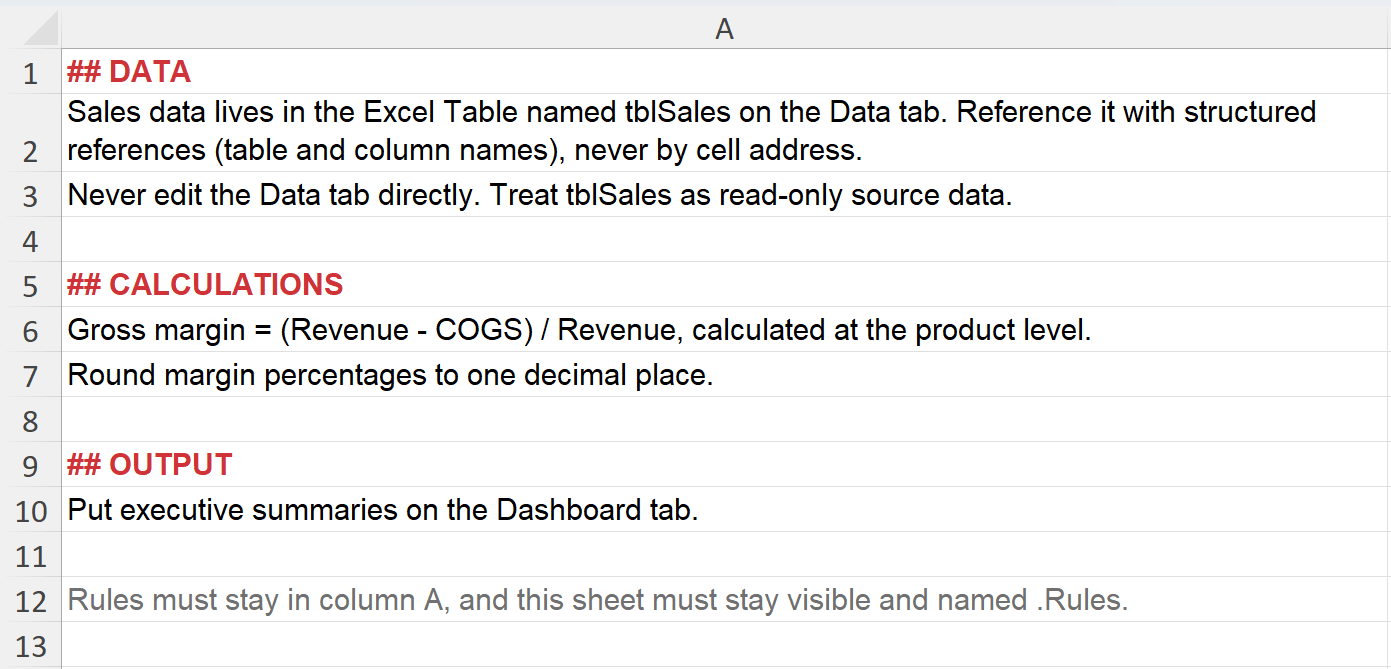
Every rule here is about the file, and none of it is a personal taste. That’s how you know each instruction found the right home. And because the rules live in the file, they travel with it. Share the workbook and your teammates and your VP get Copilot behavior that follows these conventions with zero setup on their end. That’s the killer feature for team workflows, and it’s something personalization simply cannot do. (If you’re working in your own blank workbook instead of the demo file, paste in some data and literally prompt Copilot: Create a .Rules worksheet based on this workbook. Then edit what it drafts.)
Try it: run a prompt and audit the result
Both layers are now in place, so put them to work. With the demo workbook open, ask Copilot:
Summarize June performance by product, including gross margin.

Your prompt asked for a summary and nothing else. Now audit the response, line by line, against this checklist:
| What to look for | Which layer put it there |
|---|---|
| A takeaway summary before any detailed table | Personalization |
| Currency in whole dollars with thousands separators | Personalization |
| A short, to-the-point explanation | Personalization |
| Margin calculated as (Revenue – COGS) / Revenue, by product | Rules worksheet |
| Margins shown to one decimal place | Rules worksheet |
| The summary placed on the blank Dashboard tab | Rules worksheet |
Every row in that checklist is behavior you configured once and never typed into the prompt. The prompt stated what you want right now, and the two instruction layers silently supplied who you are and what this workbook is.
Pros, cons, and caveats
Personalization follows you across workbooks and stays private. Rules stay with the workbook and keep Copilot consistent for everyone using it.
The tradeoff is simple: personalization is not good for file-specific instructions, while rules must be maintained in each workbook and remain visible to collaborators. Rules are also guidance, not a guarantee, so review the output.
| Personalization (custom instructions) | Rules worksheet (.Rules) | |
|---|---|---|
| Where it lives | Your Microsoft account (Copilot pane > Settings > Personalization) | A visible worksheet named .Rules inside the workbook |
| Describes | You: your tastes and defaults | The workbook: its definitions and conventions |
| Scope | Every workbook you open, every session, every device | That one workbook only |
| Who it affects | Only you; private, never shared | Everyone who uses Copilot in that file |
| Travels when you share the file? | No | Yes, automatically, with no recipient setup |
| Format | Free-text lines in a settings dialog | One rule per cell in column A; supports ## headings |
| Overridden by prompt? | Yes, a specific prompt instruction supersedes it | Prompts and rules are meant to work together; keep them from conflicting |
| Best for | Personal defaults: formatting tastes, formula style, verbosity | Workbook conventions: definitions, layout, do-not-touch zones, team standards |
Used together, they create three layers: your preferences, the workbook’s rules, and the prompt for the task at hand.
Where to go from here
All feature behavior described in this post comes from Microsoft’s official documentation, current as of mid-2026. Copilot in Excel is evolving quickly, so check these pages for the latest:
- Personalize Copilot in Excel (Microsoft Support): setup steps, recommended preference categories, and example preferences
- Create guidelines for a workbook with Copilot in Excel rules (Microsoft Support): .Rules worksheet requirements and best practices
- Copilot in Excel tips (Microsoft Support): overview of all customization options, including custom skills and the model picker
- Get started with Copilot in Excel (Microsoft Support): baseline capabilities and modes
If you want to go deeper on Copilot in Excel and modern spreadsheet workflows, check whether your public library card gets you free access to LinkedIn Learning. Many library systems across the country (including throughout Ohio) include the full course library at no cost, and it’s one of the best-kept secrets in professional development. I have several Excel and analytics courses there myself.