
Excel now has another recorder, which is either good news for your recurring work or a sign that we need to start labeling the record buttons. Alongside the VBA macro recorder and the Office Scripts Action Recorder, Copilot has a skill recorder: demonstrate a workflow, explain what matters, and ask it to turn the process into a reusable skill.
My first reaction was a little skeptical. If a task follows the same rules every time, why ask an AI model to interpret those rules again? A formula, a refreshable Power Query, or a saved script may already be a more direct solution. Giving the process a record button doesn't settle that question.
Still, a recurring review can involve more than a sequence of clicks. You might calculate the same figures every week while asking different questions about what they mean. I tested the recorder on a small order-review exercise to see where that combination makes sense, and where I would keep the work in conventional Excel automation.
The download contains one starting workbook, a copy-ready prompts file, and a short README. No GitHub account is needed. For the full exercise, you need Excel with Copilot workbook editing and Record a skill available. I tested this in Excel for Windows on October 27, 2026. Microsoft's October announcement described an Insiders rollout by the end of the month, so your account or build may show different controls or not have it yet.
What are we recording, exactly?
A skill saves a procedure that Copilot can reuse. My introduction to Excel skills, and the example I shared alongside it, started with the familiar problem of explaining the same task over and over. The recorder offers another way to create those instructions: show the work instead of starting with a blank text file.
Here is the example I shared alongside that earlier post:
The wording in the live recorder was revealing. It said I could edit directly in Excel, ask Copilot to make edits, or combine the two. It also warned that some actions might not be captured, and said it would interpret the workflow to draft a reusable skill. That is a useful description of what to expect: a draft of the method that you review, including any code it generates.
That last part matters. In this test, the recorder produced a JavaScript builder as well as written instructions. A skill can therefore contain deterministic code; it is too simplistic to say that everything inside a skill is improvised. The questions are which parts are saved as code, whether that code expresses the right rules, and how reliably the surrounding Copilot interaction uses it.
Before pressing Record, consider the simpler tool
If the whole job is to subtract one column from another, apply a fixed filter, and format a report, I would usually start with a formula or conventional automation. By deterministic, I mean that the same inputs and rules produce the same calculation. That does not make a script bug-free, but it gives us a specific implementation to inspect and test.
| The recurring work | Where I would start |
|---|---|
| The same calculations in a familiar layout | Excel formulas and a reusable workbook template. |
| Repeated desktop workbook actions | A VBA macro, including the macro recorder as a starting point. |
| Repeatable workbook edits, formatting, or a cloud workflow | Office Scripts, including its Action Recorder. |
| Importing, combining, cleaning, and reshaping recurring data | Power Query and its refreshable transformation steps. |
| Applying a review method while the context and questions vary | A Copilot skill, possibly created with the recorder, with stable calculations kept in formulas or saved code. |
If you would rather avoid VBA macros, that is perfectly understandable. Office Scripts has its own recorder, which turns supported actions into reusable code. Power Query records transformation steps that run again when you refresh. Neither choice requires asking a language model to reinterpret the cleanup procedure every month. Their availability and supported features depend on your Excel environment.
There is also now a built-in Copilot skill specifically for bringing in and shaping data with Power Query: Get Data. I covered it in my walkthrough of building Power Query workflows you can refresh. If recurring imports, joins, or reshaping are the real job, I would consider that skill before reaching for the general-purpose recorder. Let Copilot help build the query, review the steps, and then refresh the saved process. Microsoft's October announcement listed Get Data for Excel for the web; availability may vary.
That is also the distinction behind my earlier warning about routine reporting. Use the conversation to develop the process, then keep the implementation you have checked:
Copilot can help you choose and build those solutions. That is the point I made in my post on saving and reusing Excel prompts: a productive conversation may lead to a formula, query, or script that does the recurring work. You do not have to keep the conversation in charge of the calculation forever.
1. Open the order-review workbook
Extract the ZIP and open skill-recorder-practice.xlsx. The Orders worksheet contains six fictional orders in an Excel table named tblOrders, with filter buttons on the headers. Click inside the data and look for Table Design to confirm the table name. All quantities are units; Context contains the information someone has actually documented about the order.
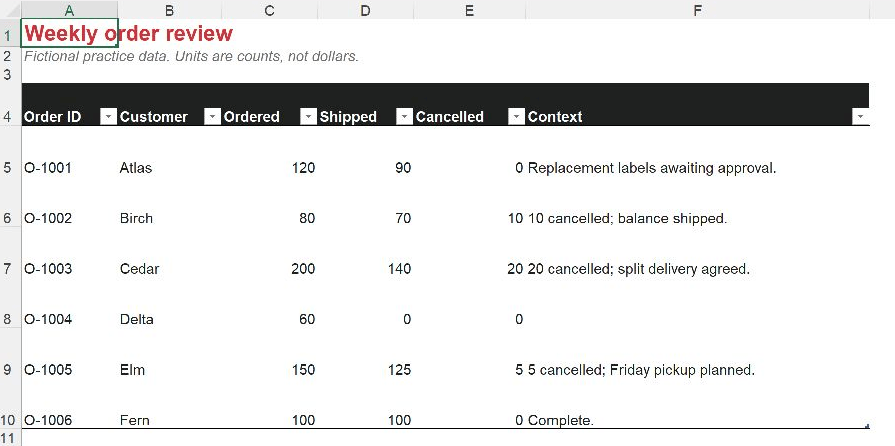
Atlas ordered 120 units and has received 90, leaving 30 open. Birch ordered 80, received 70, and cancelled 10, so nothing remains owed. Cedar also cancelled part of its order, but its remaining units are covered by an agreed split delivery. Delta has 60 open and no explanation. This adds a small wrinkle to both the calculation and the questions we should ask; Shipped being less than Ordered does not automatically mean unfinished business.
2. Start recording and demonstrate the review
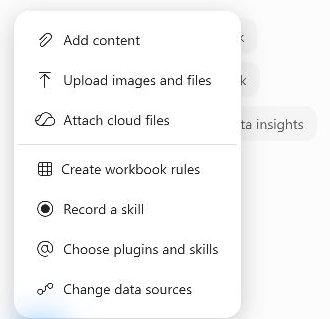
Open Copilot, select the + beside the prompt field, and choose Record a skill. In my build, this was in the prompt menu, rather than the Add menu under Custom skills. Wait until the pane shows that recording is active before editing.
Select G4 and paste the two tab-separated headers below. Excel should expand tblOrders to include both columns, with filter buttons in G4 and H4. The same copy-ready text is in practice-prompts.txt.
Open units Review questionIn G5, enter this structured-reference formula. Excel should fill the calculated column through G10:
=[@Ordered]-[@Shipped]-[@Cancelled]![Excel formula bar showing =[@Ordered]-[@Shipped]-[@Cancelled].](https://i0.wp.com/stringfestanalytics.com/wp-content/uploads/2026/10/03-structured-formula.webp?ssl=1)
Check G5:G10: the results should be 30, 0, 40, 60, 20, 0, totaling 150 open units. Birch is the useful check here: 80 minus 70 minus 10 equals zero. We also leave a negative balance visible if one occurs; silently converting it to zero would conceal a quantity that needs reconciliation.
Select H5 and paste these six example questions. These are answers we supply to demonstrate the review method, not information Copilot has discovered:
Who needs to approve the replacement labels?
No follow-up needed.
When is the agreed remaining delivery?
What is holding this order? Context not documented.
Has the Friday pickup been confirmed?
No follow-up needed.
Notice what the examples avoid. We do not chase Birch for cancelled units, invent a reason for Delta's missing shipment, or treat Cedar's planned split delivery as a failure. There are no promised dates in this workbook, so calling an order late would also require facts we do not have.
3. Explain what the demonstration cannot show
A recording can show which cells I changed. It cannot safely infer why I chose those questions. While recording is still active, send this prompt in Copilot:
The columns I added demonstrate a weekly order review. Open units must be the live table formula =[@Ordered]-[@Shipped]-[@Cancelled]. A cancelled unit is no longer owed: zero open units means no follow-up, even when Shipped is less than Ordered. Do not hide negative balances; ask for reconciliation. Review questions must follow the current Context, not memorized customer names. A planned split delivery is not automatically a failure. Without due dates, do not label orders late. If context is missing, say it is not documented and ask a neutral question. Preserve all source values and the Excel table with filter buttons. Keep the white background, use Arial 11, red #CF3338 headings and charcoal #1F2120 table headers with white text. Before saving, explain which parts belong in deterministic formulas or automation and which need judgment; do not edit the sheet yet. When drafting this new skill, name it net-order-review.This was the most interesting part of the exercise for me. Copilot separated the fixed calculation and completion rule from interpreting the current context and drafting a useful question. We were using the conversation to make the review method explicit, rather than hoping a recording would somehow capture my internal monologue.
You can do this kind of thinking with Copilot without using the recorder. If you can already describe the method clearly, writing a skill directly may be less work. Recording is more appealing when you have a useful worked example and need help turning that example into a procedure.
4. Inspect the proposed skill before saving
Click Stop. Copilot will interpret the demonstration and propose a skill. In my test, it used the requested name net-order-review and presented four files. Use Show details to inspect what each file contains before selecting Save skill. Your generated package may differ.
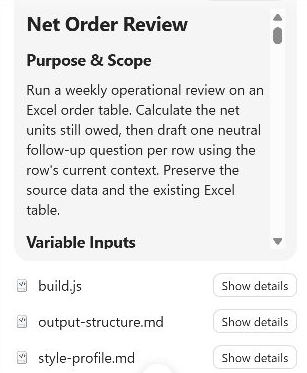
The instructions required live Open units formulas, preservation of all six source columns, and questions based on current row context. The builder handled locating the table, adding or reusing the output columns, inserting formulas, and formatting. Question-writing remained a task for Copilot. The generated JavaScript used Excel.run; it was not a ready-to-paste Office Script for the Automate tab. Microsoft documents the differences between these Excel JavaScript APIs and Office Scripts.
Look specifically for all three terms in the formula, the rule for cancelled units, and the handling of missing context and split deliveries. Also read the presentation defaults. My generated skill included freezing the first row, even though that is not the table's header row in this workbook. An automatically assembled preference is still a preference worth questioning.
After saving, Copilot confirmed that net-order-review was ready and showed how to invoke it with @net-order-review. Use the actual name from your recording. The skill is saved to your OneDrive skills folder; Microsoft's custom skills guidance explains how to manage and refresh that folder.
5. Change an order, then run the saved skill
Change D8, Delta's Shipped quantity, from 0 to 60. Enter Complete. in F8. Leave Cancelled at zero and do not change the question in H8. G8 immediately becomes zero because it is an Excel formula, while the old question still asks what is holding the order.
That small mismatch is worth noticing. The written review is a snapshot. Updating the workbook's inputs does not automatically rewrite text that Copilot or a person previously put in a cell.
Start a new Copilot chat using the + at the top of the pane, or New Chat in its navigation menu, then run the saved skill:
@net-order-review Review tblOrders on Orders using the current values. Run the saved skill, including its bundled builder, and refresh the Review question column. Preserve the source values. Report the total open units and explain any follow-up that changed.In the live rerun, Delta's question changed to No follow-up needed. The open-unit results were 30, 0, 40, 0, 20, 0, totaling 90. Birch also required no follow-up, and Cedar retained a question about the agreed remaining delivery. Check those results, the source values in A5:F10, and the formulas in G5:G10.
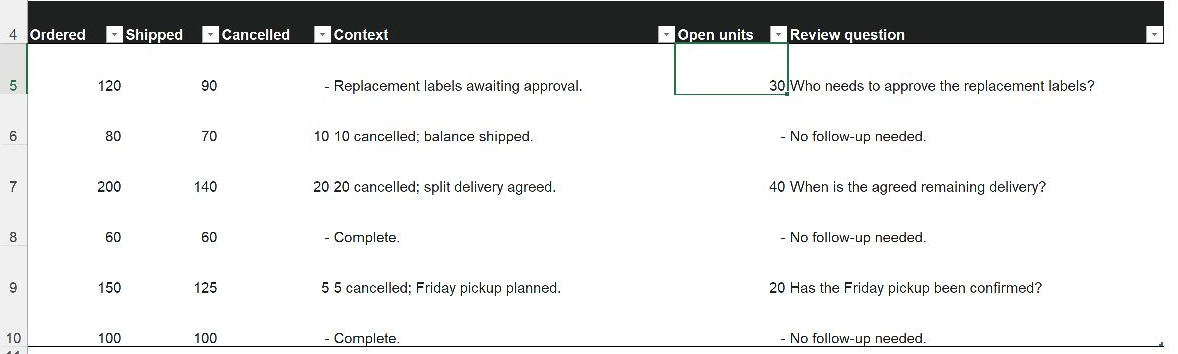
This is a small, controlled test, not proof that the skill will handle every export your organization produces. What it does show is the behavior we wanted: Excel recalculated the stable arithmetic, and the saved review method updated a stale follow-up from the current facts.
Can recorded skills work with JSON, Python, and other skills?
Yes, with a distinction worth keeping in mind: recording is a way to create the skill, not a separate kind of skill that has to live on its own little island. Once saved, its instructions and supporting files can be extended. That connects to the earlier examples of using JSON to structure Copilot outputs and bundling Python scripts in a custom Excel skill. JSON can hold settings or an output specification; a script can supply a fixed calculation; the skill explains when and how to use them.
I tried a small extension after the recording exercise. I copied the recorded skill and added an instruction to invoke a separate installed audit skill after the review. That second skill contained a JSON setting for a priority threshold of 25 open units and a saved Python script to check the current table. Calling the parent skill led Copilot to load the companion, read its settings, and report executing its Python script. The returned JSON matched the workbook: six orders, three with open units, 90 open units in total, and Atlas and Cedar above the 25-unit threshold. A quantity flag still does not tell us an order is late.
I also asked for @brandkit to handle presentation after the review. Microsoft documents this skill for applying brand guidelines, so that is a sensible division of work where it is available. In my session, however, Copilot reported it unavailable, including on a direct follow-up request. The combined run applied the colors I supplied directly; that does not demonstrate that brandkit ran. Microsoft notes that availability is still rolling out.
So there is room to combine these pieces, and the companion-skill handoff worked in this test. I would still specify the order, what each part may change, and what to report if a dependency is unavailable. Asking one skill to invoke another is an instruction for Copilot to follow, not the same guarantee as a function call in a program. And putting a Python file in a skill does not create a Python execution tool where none exists. Keep the stable calculation inspectable, and check which pieces actually ran.
Where I would use the recorder
I can see a place for it when a useful review combines a worked example with judgment that needs to be explained: what deserves a question, which claims the data supports, and how to communicate uncertainty. It can help turn an experienced person's example into a first draft that colleagues can inspect and improve.
I am much less convinced by recording a fixed cleanup or formatting routine simply to have Copilot recreate it. For that work, I would look first at a template, VBA, Office Scripts, or Power Query. Copilot can be a thought partner while you decide which tool fits, and it can help write the implementation. Once the rules are settled, there is no prize for keeping them conversational.
If you try one thing after this exercise, take a recurring spreadsheet task and separate the calculation from the questions you ask about it. Put the stable rules somewhere you can inspect and test. Then decide whether a skill adds enough useful judgment or flexibility to justify the extra layer.
Have a recurring spreadsheet task you're trying to make less manual? I help teams figure out where Copilot can help, what belongs in Power Query or a script, and how to check the results. Whether you need a hands-on workshop or help working through a particular workflow, tell me what you're working on and we can talk through what would be useful.
For a self-paced starting point, my LinkedIn Learning course, Excel with Copilot: AI-Driven Data Analysis, is fully free, with no account required.