Suppose you’re putting together a monthly expense review. For the working version, you want to discuss every category that’s at least $1,000 over budget. For a shorter management review, you want to raise that cutoff to $2,500. The data hasn’t changed, and neither has the basic assignment. You just want to change which overruns deserve a paragraph.
You could keep editing the amount in your Copilot prompt, but Excel already has a good place to store a number that might change: a cell. With a formula on a .Rules worksheet, that cell can also change the instruction Copilot reads. We’ll build the review around that idea, then run the same prompt twice to check that the changed rule affects the result.
If you’re already thinking, “Couldn’t I just use FILTER?” you’re right. We don’t need AI to identify which expenses cross a cutoff. The reason to try Copilot here is to prepare a written review using the qualifying figures, their supporting notes, and a reusable set of reporting instructions. With only three categories, doing it yourself is perfectly reasonable; the small example lets us see exactly what changes and check whether Copilot follows the rule.
Credit to Mark at Excel Off The Grid for demonstrating this approach in his video about the .Rules worksheet. The dynamic-rules section starts around 8:02. This expense example gives us a small, checkable way to try the idea ourselves.
From a standing instruction to an adjustable one
In my earlier guide to personalization versus workbook rules, I used .Rules to keep instructions with a particular workbook. That distinction still matters here: an expense-review cutoff belongs with this report. It shouldn’t become a preference that follows you into every unrelated workbook.
I described the annoyance behind workbook rules in this earlier post: even when your prompts work, you can end up repeating the same housekeeping every session. A dynamic rule takes that idea a little further by giving the changing part of an instruction its own input cell.
The mechanism is ordinary Excel. A formula returns a sentence, and Copilot reads that sentence as a workbook rule. Microsoft documents this use of formulas: after the formula recalculates, the updated rule applies to your next prompt. Keep the worksheet visible, name it .Rules, and put the instructions in column A, with one idea per cell.
That timing is part of the lesson. Recalculating a rule does not launch a new Copilot task. We’ll deliberately change the input and then ask Copilot to prepare the review again.
The expense-review workbook
The download contains a prepared workbook, a copy-ready prompt, and a short README. The data and the explanatory notes are fictional, and all amounts are in US dollars. The source data is already formatted as an Excel table so we can spend our time on the rules.
You can also browse the standalone GitHub repository. Open a working copy of dynamic-rules-expense-review.xlsx in Excel with Copilot workbook editing available. I tested this in Excel for the web, with Copilot set to Allow editing and the model set to Auto, on November 19, 2026. In that account, using Excel’s Upload a file option saved the working copy to OneDrive Documents. Your available controls and storage route may differ; Microsoft’s getting-started guide covers the current requirements.
If the mode names are unfamiliar, my guide below walks through Chat only, Plan, and Allow editing. For this exercise, the distinction is practical: we want Copilot to write the review into the workbook, so a conversation that only answers in the chat pane will not complete that step.
Start on the Expenses sheet. It contains three categories, with Budget and Actual amounts in columns B and C. Column D calculates Actual minus Budget, so a positive variance is an overrun. Column E expresses that difference as a percentage of budget; our cutoff uses the dollar amount in D.
| Category | Budget | Actual | Overrun |
|---|---|---|---|
| Travel | $10,000 | $13,000 | $3,000 |
| Software | $20,000 | $21,200 | $1,200 |
| Events | $15,000 | $15,400 | $400 |
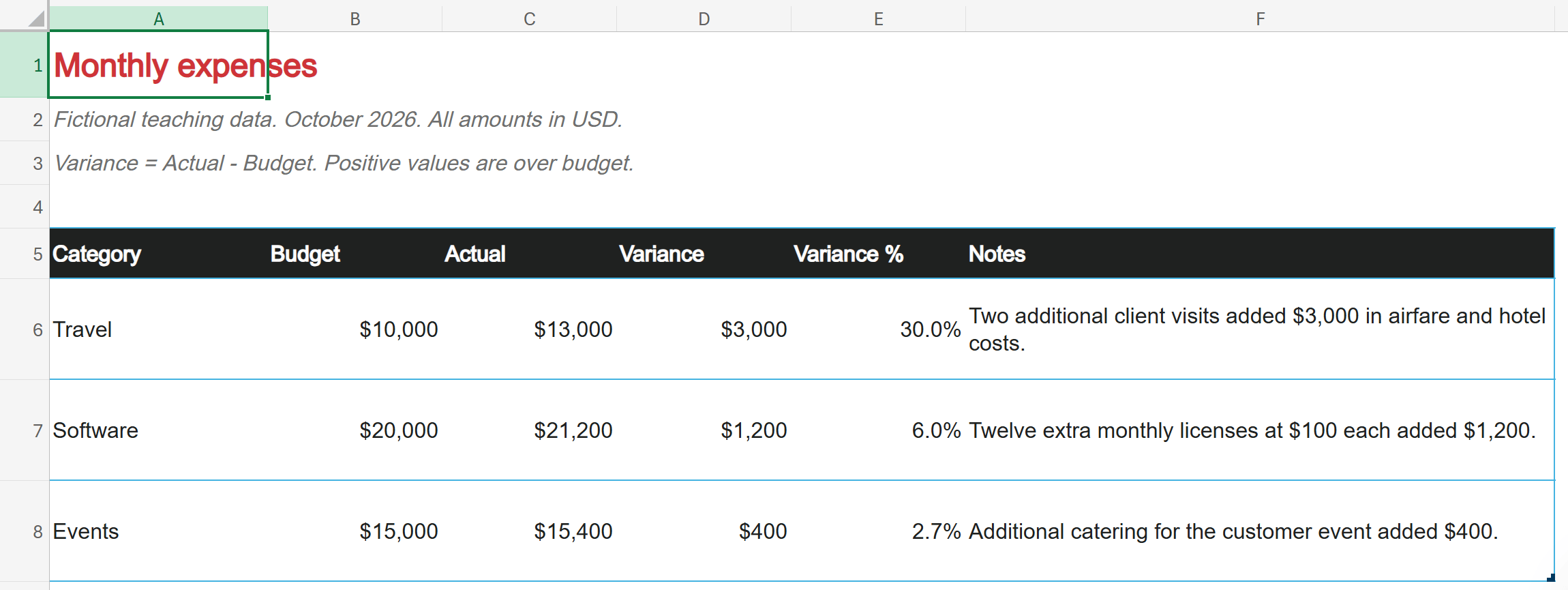
The Notes column explains the differences: two additional client visits for Travel, twelve additional $100 licenses for Software, and extra catering for Events. Those notes give Copilot evidence for its commentary. A dollar variance alone doesn’t explain why something happened, however confidently a paragraph might be written.
This is the same issue I explored in grounding Copilot in Excel with external files: a favorable travel variance could mean a genuine saving, or it could mean the trip moved to next month. I made that distinction in this post on X. Here, we keep the supporting evidence in the Notes column so you can check every explanation without opening another file.
The other sheets keep the pieces easy to inspect. Control holds the cutoff and reporting month, .Rules holds the instructions, and Review is where Copilot writes the result. The rules tell it to use the source notes, exclude nonqualifying categories from the review, and label the subtotal Qualifying overruns. That label matters because a filtered subtotal is different from the overrun for the whole business.
Could we just use FILTER?
Yes. The table on Expenses is also named Expenses, so this formula returns the rows whose Variance meets the cutoff in Control!B2. To try it, add a blank worksheet, select A2, and enter the formula below. Leave the cells to its right and below empty, and keep the formula outside an Excel table so its results have room to spill.
=FILTER(Expenses,Expenses[Variance]>=Control!B2,"No qualifying categories")At $1,000, it returns Travel and Software; at $2,500, it returns Travel. It returns all six source columns, including the Notes text, without the header row. You can copy the headers from Expenses!A5:F5 into A1:F1 on the new sheet. Apply currency formatting to B:D and percentage formatting to E if you want the numbers to look like the source. With automatic calculation on, changing the cutoff recalculates this result without another prompt. I checked both cutoffs in Excel for the web. Microsoft’s FILTER documentation explains the function and its spilled results.
If that filtered list is your finished report, FILTER is the simpler choice. You can also build a fixed written template with Excel text formulas. Copilot becomes useful when you want help drafting and arranging a review under instructions such as which categories to discuss, which notes may support an explanation, and where the result should go. It still needs checking, and this tiny example does not prove it saves time.
What we’re testing here is whether a worksheet input can steer that recurring writing task. Control!B2 supplies the amount, .Rules!A5 turns it into an instruction, and the next Copilot run uses that instruction to prepare Review. You can skip the optional FILTER comparison and follow the five steps below with the prepared workbook.
Run the review at $1,000
- Check the input. Open
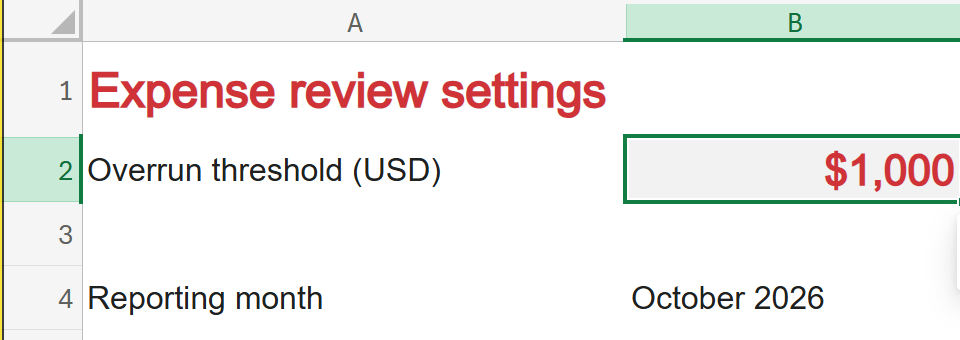
Controland leave cellB2at1000. The reporting month inB4is October 2026. The threshold is a dollar amount, not a percentage.
- Inspect the dynamic rule. Open
.Rulesand selectA5. The formula is already in the starter workbook; you can inspect it in the formula bar or use the following formula to build the same rule in your own file.
="Discuss expense categories where Actual minus Budget is at least $"&TEXT(Control!B2,"#,##0")&"."The ampersands join text and cell values. The TEXT function formats the input as a whole-dollar number with a thousands separator. With Control!B2 set to 1000, the cell displays: Discuss expense categories where Actual minus Budget is at least $1,000. The words at least make the boundary inclusive.
Only that changing sentence needs a formula. The surrounding rules can stay as ordinary text: where to find the data, how to calculate an overrun, which evidence to use, and where to write the report. Keeping those responsibilities separate also makes it easier to spot an instruction you want to revise.
- Ask Copilot for the review. Open the Copilot pane, choose a mode that can edit the workbook, and submit the following prompt. In my test, that mode was labeled Allow editing.
Prepare this month's expense review using this workbook's rules.- Check the written result. On
Review, look for Travel and Software, with overruns of $3,000 and $1,200. Their qualifying subtotal should be $4,200. Events should be absent from the qualifying table because its $400 overrun is below the cutoff. Compare the commentary with the source notes as well as checking the arithmetic.
That’s what Copilot wrote in the first test. Its explanations used the additional client visits and extra licenses from the workbook. The prompt itself never specified $1,000; the threshold came from the workbook rule.
Change the cell and repeat the same prompt
- Raise the cutoff and rerun. Change
Control!B2to2500. Check that.Rules!A5now displays $2,500, then submit the exact same prompt again. Wait for Copilot to finish and inspect the replacement review.
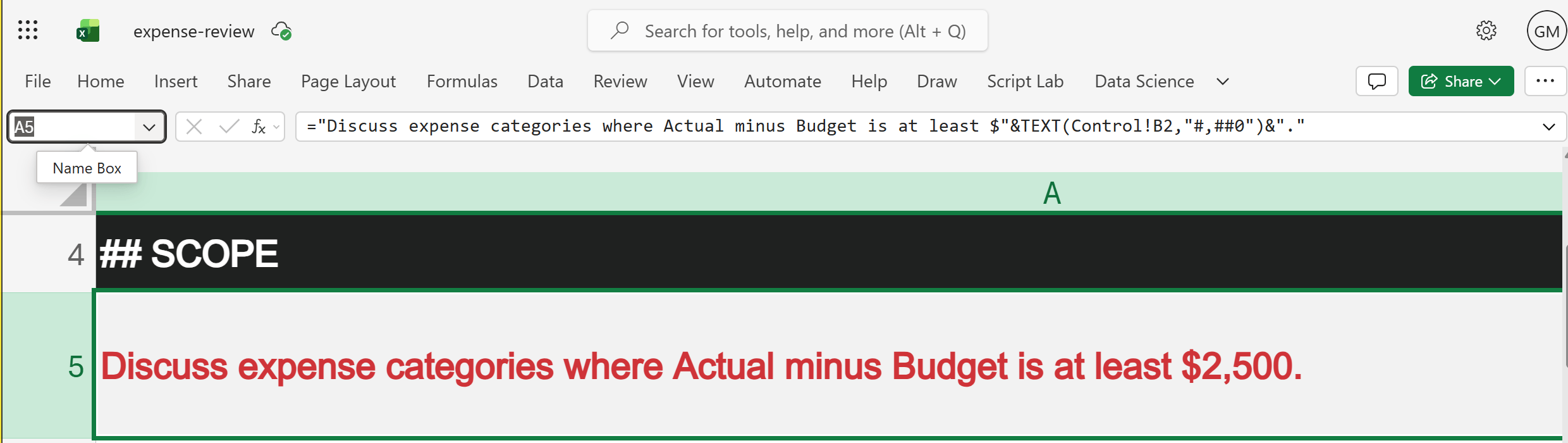
In the second test, Copilot replaced the two-category review with Travel alone. The qualifying subtotal became $3,000. Software’s $1,200 overrun no longer met the cutoff, and Events remained below it.
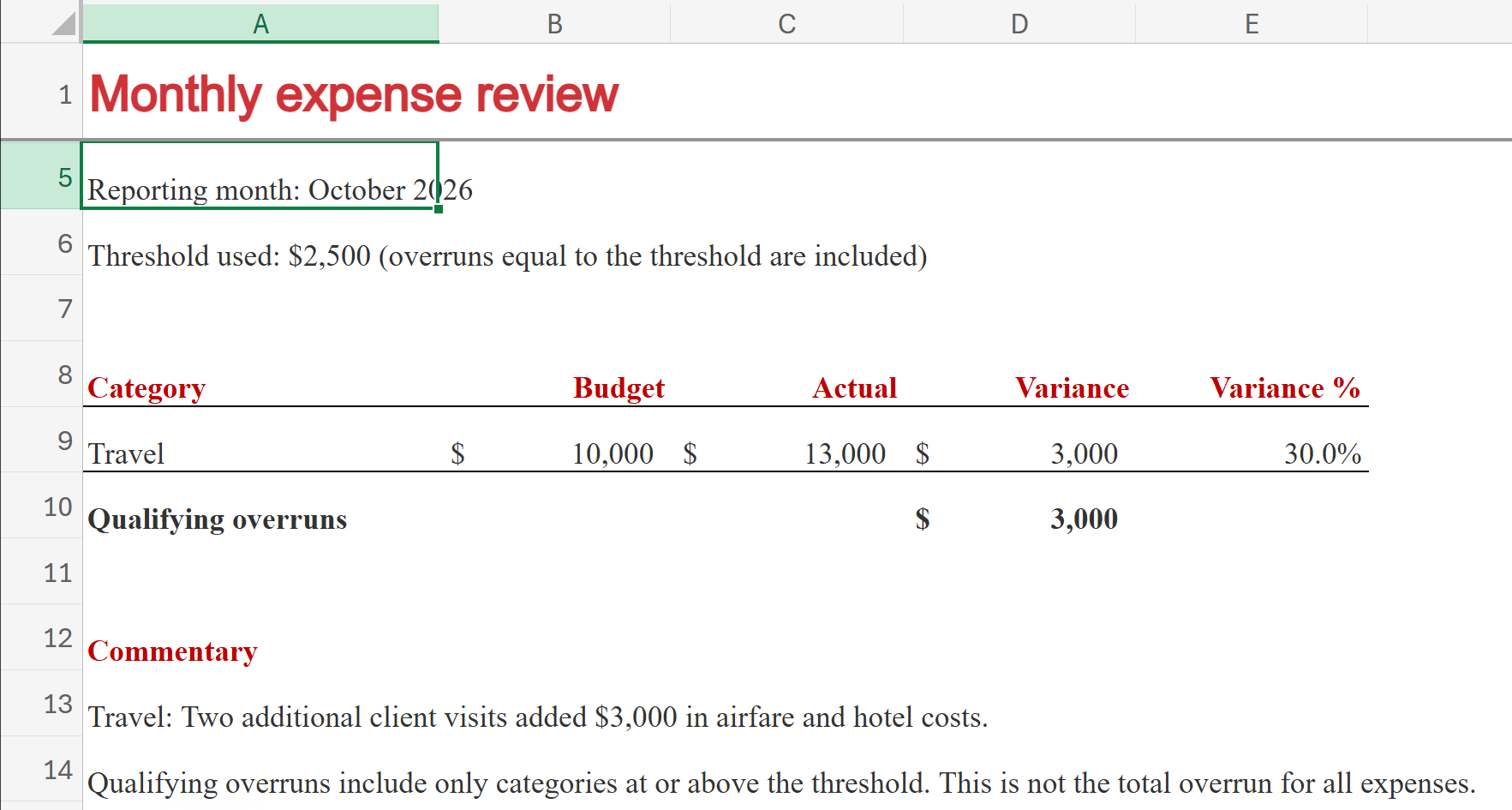
Look at the commentary beneath the table: the explanation about two additional client visits comes directly from Travel’s source note. In this small test, Copilot mostly carried that sentence into the report. Its contribution was assembling the requested review and following the changed scope; it did not uncover a new business explanation. With longer notes, you might value help condensing them, but the evidence still has to come from the workbook.
Both checks reconcile to the source data. At $1,000, $3,000 plus $1,200 gives us $4,200. At $2,500, only the $3,000 Travel overrun qualifies. The overrun across all categories is still $4,600. The airfare still cost what it cost; we’ve changed which overruns we want to discuss.
What actually becomes dynamic?
One detail from the test is worth carrying into your own workbooks. Copilot linked some report cells, including the month, threshold, and amounts, back to the workbook. But the list of categories it wrote was fixed for that run. A changed threshold could therefore appear in the report heading before the category list had been rebuilt. Always rerun the prompt after changing the input, then check the included rows and commentary.
Copilot also stated in its response that it hadn’t read the cells back after writing them. I inspected the worksheet to confirm the result. A chat message saying the task is done is useful, but the output cells are where you check whether the review is right. Microsoft makes the same review requirement explicit in its guidance on data insights with Copilot.
For three categories, checking the qualifying rows and adding their overruns is straightforward. When you build a larger reporting process, the same principle can become a separate validation step. My Office Scripts walkthrough below compares an AI-generated total with an independently calculated total before the report moves forward. You do not need that automation to follow this exercise, but it shows how this small check can grow with the job.
The useful part of a dynamic rule is that someone can inspect the reporting choice in a familiar place: a worksheet cell. The scope changes with that input, while the evidence and output instructions remain beside it on .Rules. That gives you a visible control over a recurring Copilot task, along with a sentence you can read before asking it to act.
This is also a good example of the Learn, Confirm, Extend approach I use when thinking about Excel training: understand the calculation, predict a small result, and then use Copilot to extend the work. My post below introduces that balance between Excel fundamentals and AI assistance. Before trying the next cutoff, make your own prediction; that gives you something concrete to check.
Try one boundary check: what should happen at $1,200?
Travel and Software should both qualify, for $4,200 in qualifying overruns. Software is exactly on the boundary, and the rule says "at least." Change the input, inspect the sentence on .Rules, and rerun the prompt to check your result.
For your own workbook, start with one input that changes a real reporting decision: a cutoff, a reporting period, or the audience for the review. Make the resulting sentence easy to read, and give yourself an obvious way to check whether Copilot followed it. For more practice with this kind of workflow, my full LinkedIn Learning course, Excel with Copilot: AI-Driven Data Analysis, is free, with no account required.