
When you ask Copilot a question in Excel, you may want an explanation before you make any changes. For another task, you might already know what needs to be done and want Copilot to do it in the workbook.
Excel now makes that distinction more explicit with three Copilot modes: Chat only, Plan, and Allow editing. The last one is what I mean by edit mode throughout this post. Choosing a mode helps you decide whether you want an answer, a proposed approach, or changes in the cells themselves.
Let's look at when each makes sense, then try them on six rows of fictional workshop bookings. We'll also sort out licensing, because having access to a Copilot chat somewhere in Microsoft 365 does not automatically tell you what is available inside Excel.
Chat, Plan, and Edit: when should you use each?
| Mode in Excel | What happens | When I would use it |
|---|---|---|
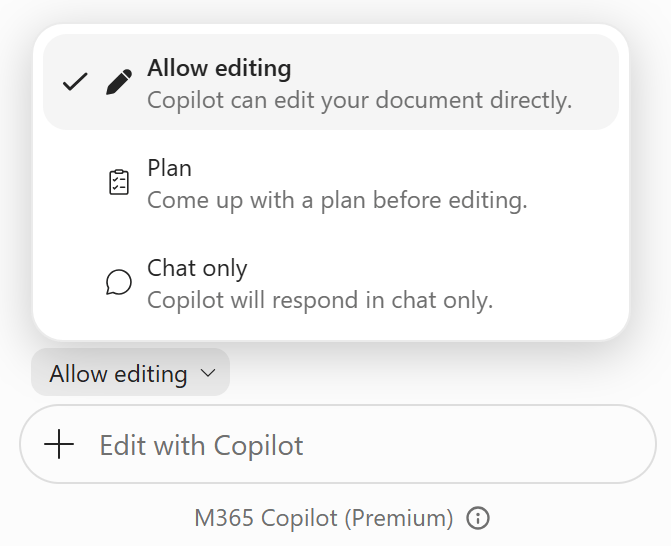
| Chat only | Copilot responds in the chat pane without changing the workbook. | Ask what a formula means, explore a result, or get advice before deciding what to change. |
| Plan | Copilot proposes steps for you to review before it starts editing. | Work through a request with several parts, such as adding calculations and a summary. |
| Allow editing | Copilot can make changes directly in the workbook. | Carry out a clear task, such as adding a formula column, formatting a range, or building a summary. |
These are ways of working, rather than beginner, intermediate, and advanced levels. That distinction came up when I wrote about what those Copilot skill levels actually mean, after an inquiry about teaching an "intermediate Copilot" class:
An experienced Excel user may spend plenty of time in Chat only, while a beginner with a small, clear request can use Allow editing.
Open Copilot in Excel, then look for the mode selector near the prompt box. In my Windows test, it started in Allow editing, and a new conversation returned to that default. Take a second to check the label before you send a prompt. Microsoft's getting-started guide describes these three modes for Excel on Windows, Mac, and the web; mobile availability differs.
Which license do you need?
Licensing is a separate question from the mode you choose. Chat only and Allow editing do not map neatly to free and paid access. Microsoft currently distinguishes between standalone Copilot Chat access, standard Copilot access inside Office apps, and premium access.
| Access or account label | What it means for this example |
|---|---|
| Copilot Chat (Basic) Work or school |
Standalone Copilot Chat access does not include Copilot inside Excel. Being able to chat on the web is not the same as editing the workbook open in Excel. |
| M365 Copilot (Basic) Work or school |
Standard in-app access without the paid Copilot add-on. Microsoft describes limited capabilities and usage; check the modes actually offered in your Excel installation. |
| M365 Copilot (Premium) Work or school |
The paid Microsoft 365 Copilot add-on provides full in-app capabilities and priority access. This is the account label used for the screenshots here. |
| Microsoft 365 Personal or Family with AI credits, or Microsoft 365 Premium Personal account |
Qualifying consumer subscriptions can include Copilot in Excel. Benefits and limits vary by plan; for Family, the desktop-app Copilot benefit belongs to the subscription owner. |
For work or school accounts, check the label shown for your account and compare it with Microsoft's license identification guide. Its Copilot overview explains the Basic and Premium distinctions. For personal subscriptions and Excel-specific requirements, use the Excel Copilot FAQ.
The practical answer is to check both your entitlement and your actual Excel menu. A standalone free chat is not proof that you can edit in Excel, and the absence of the paid business add-on is not, by itself, proof that you cannot. Your organization's settings, usage limits, and feature availability also matter. The licensing information here was checked on November 13, 2026.
Try it with a small booking workbook
The download includes the starter workbook, copy-ready prompts, and a short README. You can also browse the companion GitHub repository.
Open workshop-bookings.xlsx in a current version of Excel with Copilot available. The Sessions sheet contains an Excel table, also named Sessions, with Workshop, Location, Seats, and Booked columns. Save a working copy so you can return to the starting point.
The question is simple: how full are our workshops? We have 90 bookings across 120 available seats, so the overall booking rate should be 75%. That gives us a useful check before asking AI to do anything.
1. Use Chat only to understand the data
Select Chat only and send this prompt:
Using the Sessions table, identify the workshop and location with the highest booked percentage, and calculate the overall booked percentage. Explain both calculations in three short sentences. Do not change the workbook or show file paths.
In my test, Copilot identified Excel in Cleveland at 90%: 18 bookings divided by 20 seats. It also calculated the overall rate as 90 divided by 120, or 75%. The original four-column table stayed unchanged.
That is a good use of Chat only: I wanted an answer and an explanation, without committing to a new worksheet layout. You can also use it to ask why a formula works or what a calculation leaves out. If you eventually want the answer stored in cells, you can make that a separate editing request.
2. Use Plan to review the approach
Now switch to Plan. We'll ask for the booking rates in the workbook and a small summary:
Plan a simple booking summary on this sheet. Add a Booked % column to the Sessions table using Booked divided by Seats, plus a small summary to the right showing total Seats, total Booked, and overall Booked %. Use formulas, and calculate the overall percentage from the totals. Preserve the existing data. Show me the plan before making changes.
Copilot proposed a Booked % column and a summary with total seats, total bookings, and the overall percentage. It then paused at a Proceed button. The cells were still unchanged at that point.
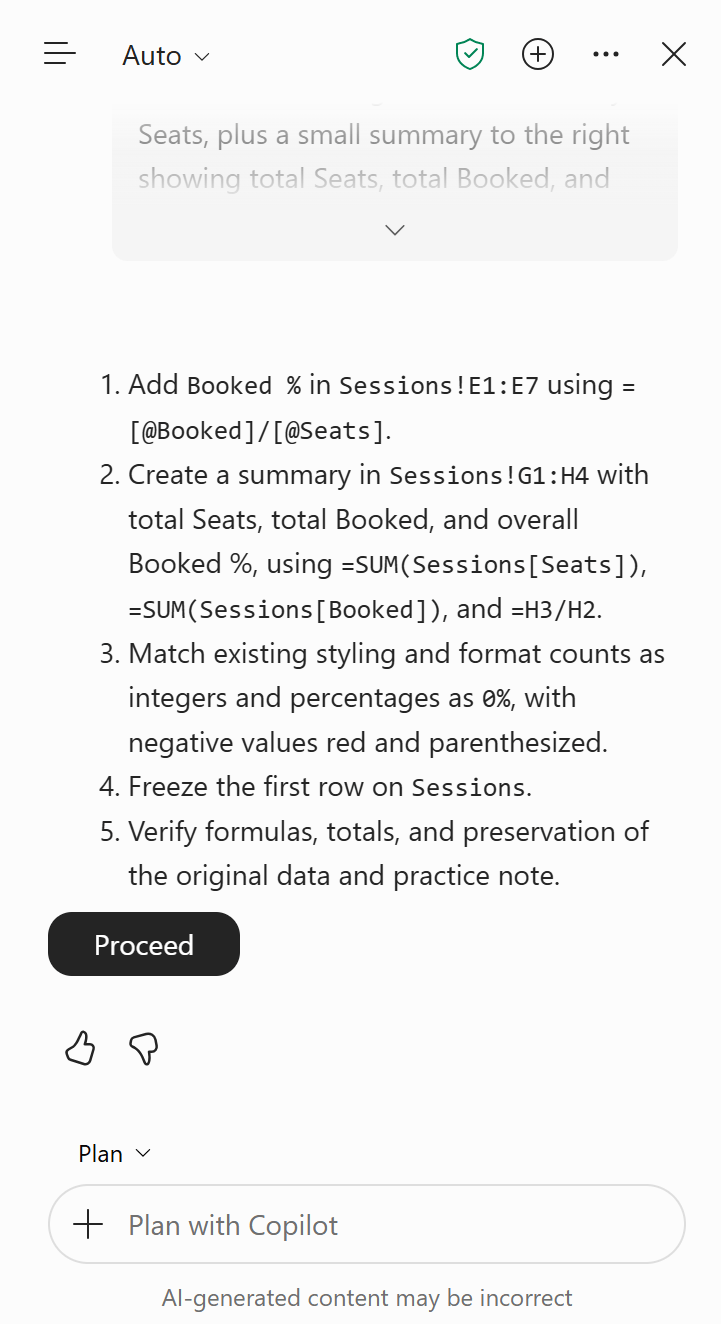
Read that plan as you would instructions handed to a colleague. Does it preserve the original data? Does it put the summary somewhere sensible? Does it calculate the overall percentage from the totals? That last detail matters: averaging the six workshop percentages gives a different answer because the workshops have different capacities.
If the plan needs adjusting, ask for the adjustment before proceeding. Plan is especially helpful when "make this better" would otherwise leave Copilot guessing what better means.
3. Let Copilot edit, then check the formulas
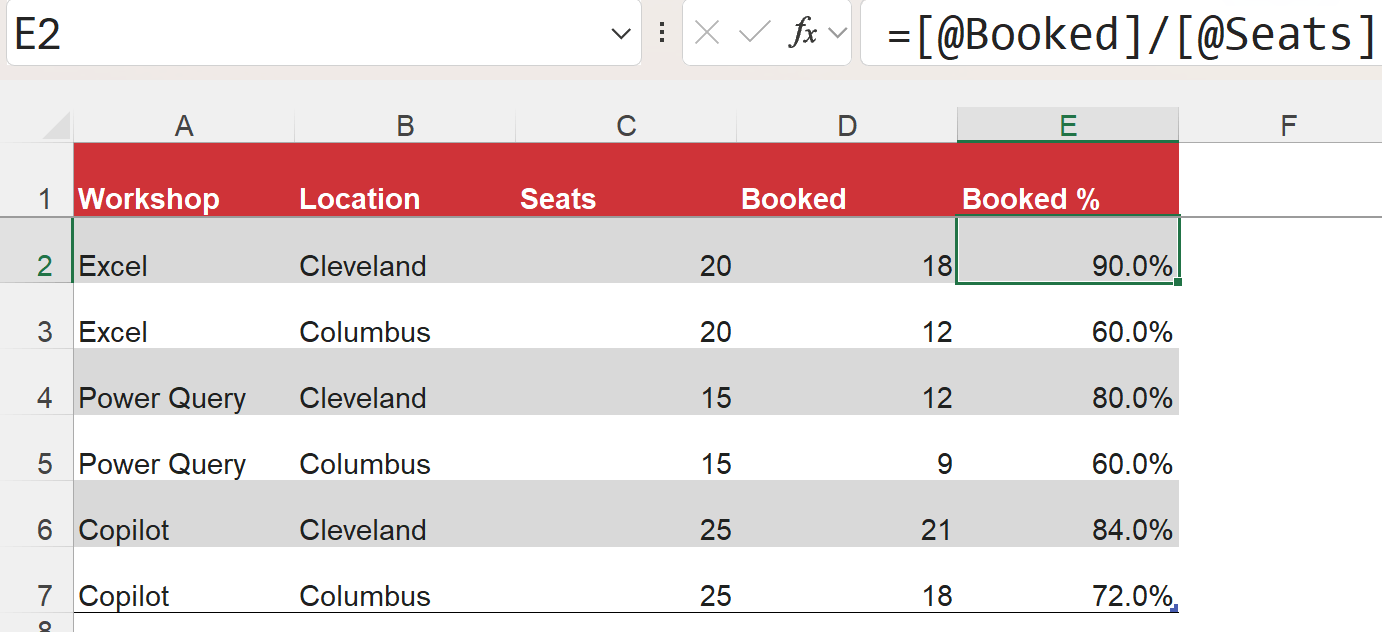
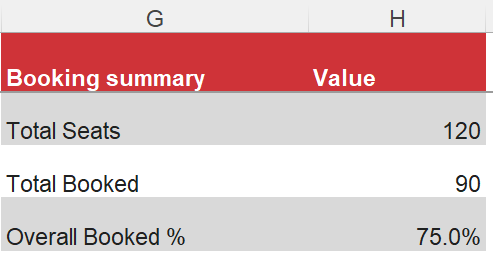
Select Proceed when the plan looks right. In my test, Copilot added the formula column and summary, and I selected Done after reviewing its changes. To try a direct editing request, I then chose Allow editing and sent:
Format the Booked % column and the overall Booked % result to one decimal place. Keep the formulas and original booking data unchanged.
Copilot changed the displayed percentages to one decimal place. This time there was no separate plan to approve first: it carried out the requested change. I then widened the columns for readability. If you see #### where a result should be, widen the column before assuming the formula is wrong.
You can also choose Allow editing at the outset when the task is already clear. For example, you could ask it to add the same Booked % column without first requesting a plan. You do not have to visit all three modes for every task; we are using them in sequence here to make the differences visible.
Check that the new column uses Booked divided by Seats, rather than typing the percentages as fixed values. The first row should be 90%, and the summary should show 120 seats, 90 bookings, and 75% overall. Then temporarily change the first Booked value from 18 to 19. That row should become 95%, total bookings should become 91, and the overall rate should be about 75.8%. Change it back to 18 when you finish.
These checks are part of the Learn, Confirm, Extend approach I use when teaching Excel alongside Copilot. The idea is to learn the calculation, practice and check your understanding, then use Copilot to take on a more involved task.
For a team exercise, ask everyone to calculate the overall booking rate before using Copilot. With six rows, they can check the 75% result by hand and compare it with the workbook output.
Your turn: choose the mode
Try choosing a mode for each of the three tasks below, then open the answer to compare.
- You want to understand why the overall booking rate is different from the average of the six row percentages.
- You want a new booking summary, but you want to check its layout and calculations before the workbook changes.
- The formulas are correct; you want the percentages displayed to one decimal place.
Reveal my choices
1. Chat only. 2. Plan. 3. Allow editing. The first job needs an explanation, the second benefits from an agreed approach, and the third is a clear change ready to carry out.
Start with the kind of help you need
The next time you open Copilot in Excel, check the mode before writing the prompt. Use Chat only when you want to understand something, Plan when you want to review the approach, and Allow editing when you are ready for workbook changes. For a first experiment, the six-row booking file is enough to see all three in action.
If you would like more practice, my LinkedIn Learning course, Excel with Copilot: AI-Driven Data Analysis, is fully unlocked: the full course is free, and no account is required.