
You are asking Copilot a perfectly ordinary Excel question, and then a little shield or sensitivity badge catches your attention. Was it green a moment ago? Why is this one orange? Has Copilot found personal information, and is it now doing something different with your workbook?
A tiny icon has suddenly given you a much larger reading assignment. Before we turn that into an impromptu security certification, there are three things to separate: enterprise data protection, sensitivity labels, and policies that restrict what Copilot can do.
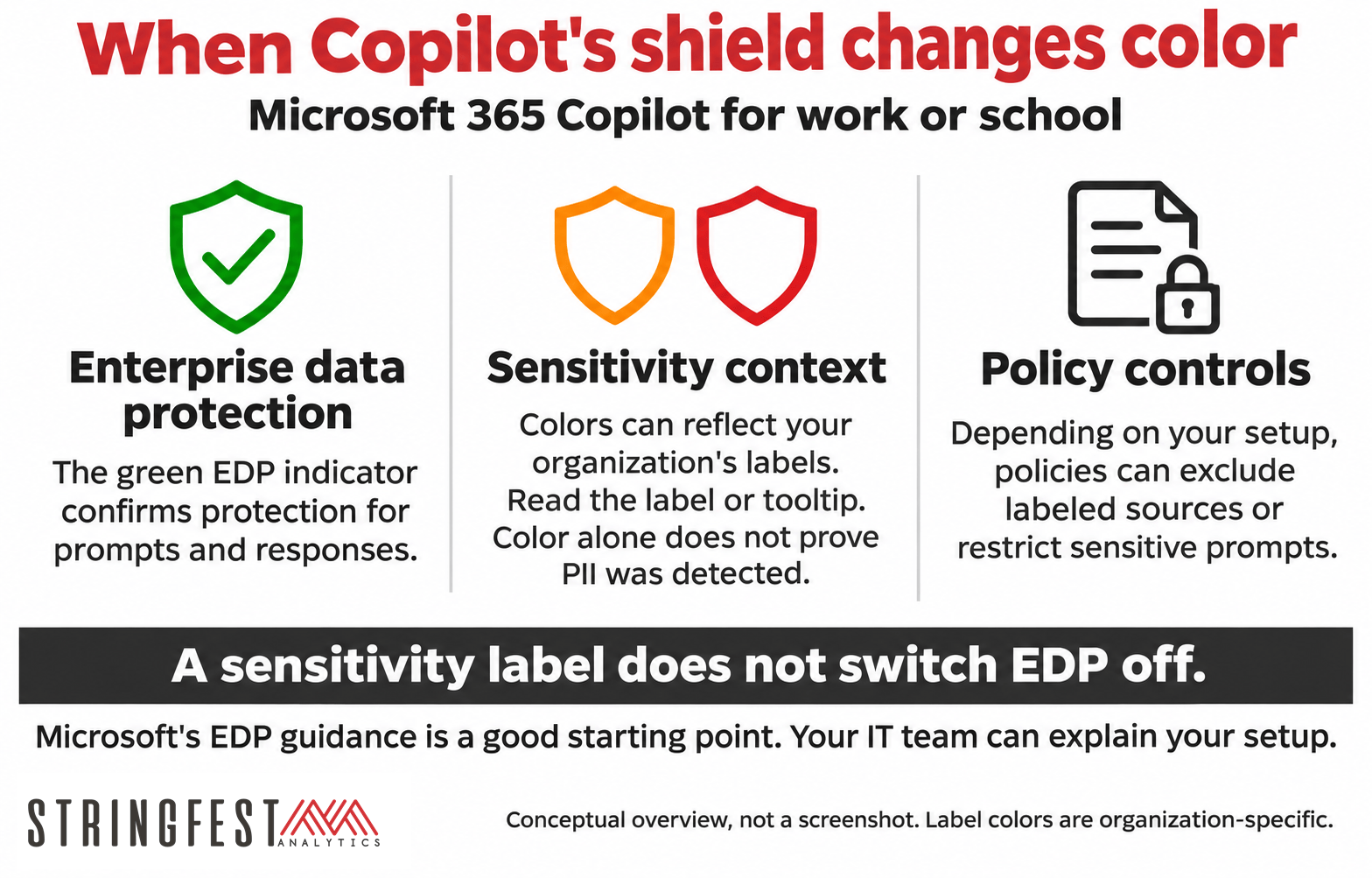
An orange or red badge alone does not prove that Copilot detected personally identifiable information (PII), and it does not establish that enterprise data protection has switched off. Read the label or tooltip attached to the actual indicator. The meaning depends on the Copilot experience and your organization’s configuration.
What the green EDP shield tells you
For the work or school Copilot Chat experience covered here, yes: enterprise data protection, or EDP, applies to prompts and responses. Microsoft describes the green shield near the top of Copilot Chat as its EDP indicator. Sign in with the intended organizational account and check that indicator; the word “Copilot” on its own is not enough to identify the account or service you are using. See Microsoft’s Copilot Chat privacy and protections guide.
EDP is the set of enterprise commitments and controls around that data, including encryption and Microsoft’s contractual data protection terms. Microsoft says these prompts and responses are not used to train the underlying foundation models. Applicable permissions, retention, and other organizational controls still matter. This is a good place to check the official explanation: Enterprise data protection in Copilot and Copilot Chat.
That page is a starting point, not a substitute for your company’s IT or security team. They can tell you which accounts, features, data categories, and policies your organization approves. Also, do not stretch the EDP promise into “every possible connected service has identical terms”: Microsoft describes separate handling for generated web search queries, and agents can involve additional terms and data flows.
I raised the green-shield question in this earlier X post about the Copilot Chat experience included with eligible work subscriptions. It is a useful reminder that “Do we have the paid add-on?” and “What protects this conversation?” are separate questions. Check current licensing with your administrator before applying the older post’s plan details to your organization.
A sensitivity label answers a different question
A label such as “Confidential” describes the content’s classification. Your organization defines the label names, their priority, and their colors. Microsoft even lets administrators choose the label colors. There is no universal Copilot traffic-light chart in which orange always means “PII detected” and red always means “you are in trouble.”
A label can be applied by a person or through configured labeling mechanisms. Seeing it does not tell you, by itself, how it got there. A fictional training workbook can carry a Confidential label, while a carelessly unlabeled workbook can contain real personal data. That is why the badge is useful context rather than a complete verdict on the contents.
Microsoft documents that Copilot can display the highest-priority sensitivity label from the sources used for a response. This helps you recognize that an answer draws on sensitive material. Supported content-creation experiences can also carry labels forward, and configured encryption permissions continue to matter. See Microsoft’s guidance on sensitivity labels and AI interactions.
So the label is doing more than providing a colorful decoration for your spreadsheet. It gives people and supported services a consistent classification to work with. Whether that classification also changes access or Copilot behavior depends on the protections and policies attached to it.
Does Copilot actually work differently?
It can. A classification-only label may leave your analysis available. A label with encryption can constrain permitted use. A separate data loss prevention (DLP) rule can exclude selected labeled files from Copilot processing. Microsoft’s data protection architecture guide explains these layers. The color itself is not the enforcement mechanism.
There are also DLP controls for sensitive information in prompt text. Depending on the configured rule, Copilot can block the prompt or prevent external web search while still using permitted internal sources. Microsoft currently describes prompt blocking as a preview feature with rollout differences. These are distinct outcomes, so “Copilot warned me” is not the same observation as “Copilot could not use this file.”
A useful limitation: the sensitive-information check described for prompts does not scan the contents of directly uploaded files; it checks the prompt text. Labeled-file controls are a separate route. Microsoft’s Copilot DLP documentation explains the supported conditions and actions. Your IT team can confirm which ones are actually enabled.
Try a controlled comparison with a fictional workbook
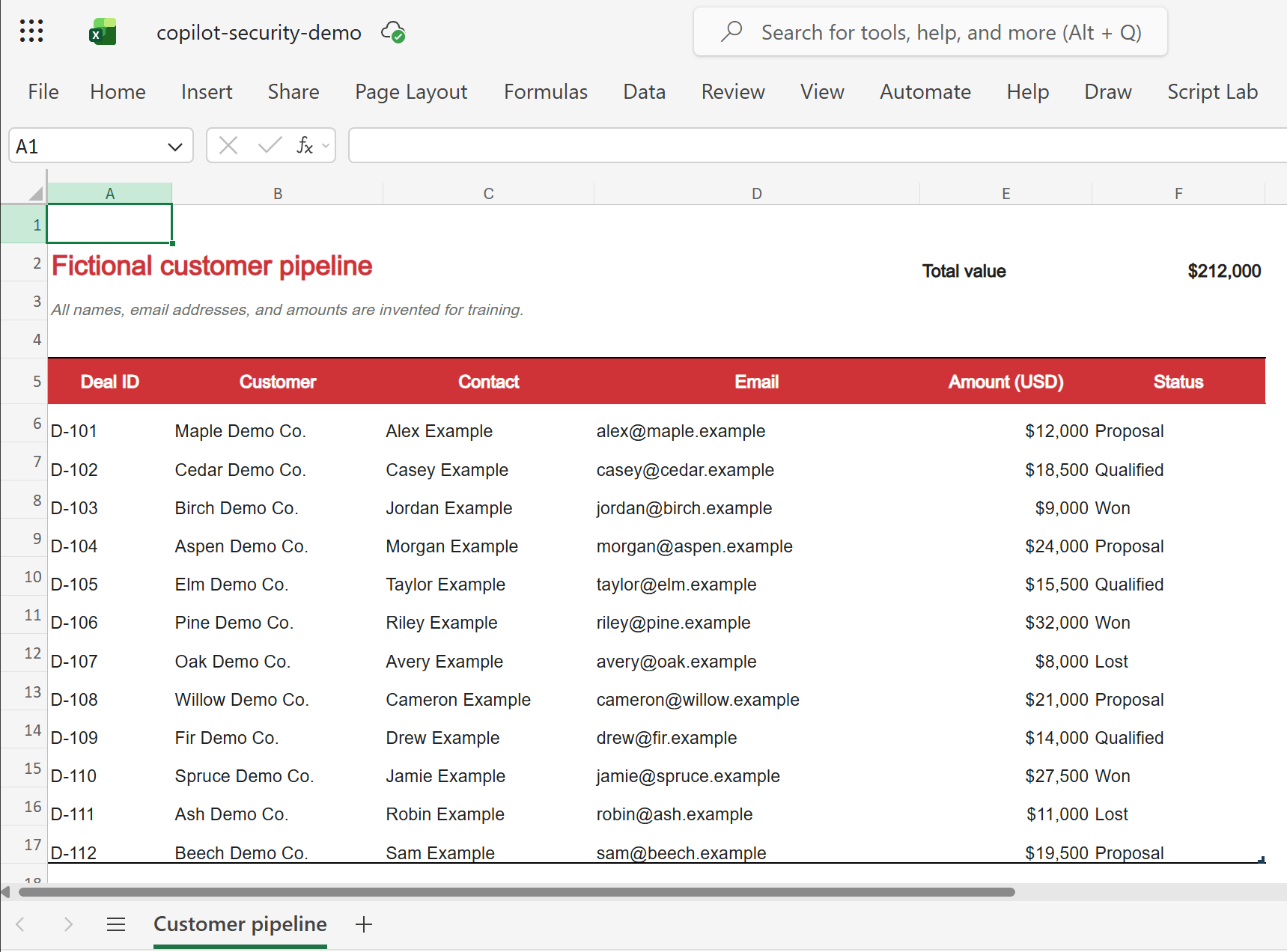
To make the distinction tangible, I prepared a small customer-pipeline workbook with 12 invented deals, invented contacts, and email addresses using the reserved .example domain. The data is already in an Excel table named CustomerPipeline. There is no prize for testing a security feature with an actual customer list.
For the admin side, I created two manual file labels: orange Demo – Confidential and burgundy Demo – Restricted. I published them only to my own test account, with no default or mandatory label. Neither label adds encryption, and neither is an automatic PII detector. The label names and colors are choices for this demonstration, not Microsoft defaults.
For the blocking comparison, I used prompt protection included with my Microsoft 365 Business Premium plan. Microsoft’s current licensing table distinguishes that capability from Copilot file-and-email processing restrictions, which require a qualifying entitlement. I did not enable a file-label blocking policy. The label setup and the prompt rule below are separate controls.
The ZIP contains the starting workbook, copy-ready prompts, and one short README. The same files are in the standalone GitHub repository. These files do not install policies or apply labels.
1. Establish a baseline
Save a working copy of copilot-security-demo.xlsx to your approved work OneDrive or SharePoint location, then open it in Excel for the web. Open Copilot and select Chat only. This is the route I used for the baseline workbook screenshots; the label comparison in step 2 uses Excel desktop. Record the account, application, label, and any shield tooltip before asking for the summary.
Using only CustomerPipeline in this workbook, report total pipeline amount and amount by Status. Include the number of deals. Do not repeat contact names or email addresses, and do not edit the workbook. If you cannot access the workbook, say so instead of guessing.Copilot read all 12 deals and returned $212,000, matching the SUM formula in F2. It also returned the correct status amounts: $68,500 Won, $48,000 Qualified, $76,500 Proposal, and $19,000 Lost. The deal counts were 3, 3, 4, and 2 respectively. It did not repeat the contact details. Those checks establish that this conversation could use the workbook; a confident-looking answer alone would not.

My desktop attempt reported a workbook connection error, so I used Excel for the web for this baseline. That error did not identify an organization-policy restriction. Keeping those observations separate matters when troubleshooting a security question.
2. Watch the label change while EDP stays visible
The labels were available in Excel desktop when I checked again on November 22, 2026, before a full 24 hours had elapsed. Microsoft describes a propagation window, not a mandatory waiting period: some updates arrive sooner, while some configurations take longer. Excel for the web was still not offering the labels in this account, so the color screenshots below come from the desktop app.
In the same fictional working copy, I chose Home > Sensitivity > Demo – Confidential. Excel showed the orange label in its title bar, and Copilot’s header badge turned orange too. Opening the badge displayed the label name and my classification-only description. At the bottom, it still confirmed that enterprise data protection applies to this chat.

Next, I applied Demo – Restricted and started a fresh Copilot conversation. The badge was now burgundy, matching the second label, and its details again confirmed EDP. I had changed the classification, not added personal data to the workbook. Even the popup’s generic statement about sensitive data needs that context: these labels were applied manually to invented training data.

I also repeated the same summary prompt in Chat only mode for both labels. Both desktop chats reported that they could not access the workbook and returned no totals. Desktop access had already failed before labeling, so these results do not establish policy blocking, and I cannot claim a successful labeled-workbook analysis from this test. What the screenshots do establish is the color change and the continuing EDP confirmation. The separate prompt-policy test below supplies the actual enforcement example.
For your own comparison, ask IT for an approved fictional-data label and its intended behavior. Apply it to a working copy, save and reopen, then start a fresh conversation and repeat the baseline prompt. Compare the label text, tooltip, and actual response. Do not borrow a production label just because its color matches this article.
3. See a prompt policy change the outcome
For the policy test, I opened the main Microsoft 365 Copilot website, signed in with my work account, and used Chat. This is a browser prompt test, separate from the workbook analysis in Excel. The green shield’s tooltip confirmed that enterprise data protection applied to the chat.
In Microsoft Purview, I created a custom sensitive information type that matches one invented string: STRINGFESTDEMOSECRET20261121. The classification test found that marker at high confidence and found no match in a comparison sample containing STRINGFESTDEMOPUBLIC20261121. Calling this a sensitive information type does not turn it into real PII; it is a harmless stand-in that lets us test the rule.
The custom DLP policy covers only my account and the Microsoft Copilot location. Its Content contains condition matches that custom type at high confidence, with a minimum of one occurrence. The action is Restrict Copilot from processing content, with Processing prompts set to Block and policy tips enabled. I turned the policy on, then tested it in separate new conversations. Your administrator can prepare an approved equivalent; pasting my marker into an unrelated tenant will not create this policy.
First, I sent the comparison prompt:
This is a fictional security training check. Marker: STRINGFESTDEMOPUBLIC20261121. What is 2 + 2? Reply with the number only.Copilot returned 4. In a new chat, I changed only the marker:
This is a fictional security training check. Marker: STRINGFESTDEMOSECRET20261121. What is 2 + 2? Reply with the number only.This time, Copilot displayed a message that the request could not be fully completed because of my organization’s policies, with a link about access restrictions. The EDP shield remained green, and its tooltip still said protection applied. We had an actual restriction, alongside continuing EDP, without turning the shield into a red PII alarm.

That is the difference to look for: a matching policy changed the permitted operation. The two browser prompts kept the question, account, and app constant. For the Excel comparison, keep the workbook and analysis prompt constant too; changing six things at once makes it hard to know which one explains the result.
Quick check: a workbook turns orange, but Copilot still summarizes it. Has security failed?
That observation alone does not establish a failure. Read the label and confirm its intended policy. A classification-only label can be working as configured while analysis remains available. To test blocking, you need an applicable rule, content that matches its condition, and evidence of the resulting restriction.
More context makes the security question more useful
In my guide to grounding Copilot with external files, a meeting transcript explains why travel is under budget: the trip moved to a later month. The workbook alone cannot supply that explanation. As I put it on X, we should check the other sources before congratulating ourselves on the savings:
The same habit applies here. Ask which sources informed the answer, which classifications those sources carry, and whether your policies permit the intended use. A concise summary can still contain sensitive facts. Copying it into an email does not make those facts less sensitive just because Copilot did the writing.
If the account and licensing side is still fuzzy, this earlier guide is a useful companion. It explains the included Copilot Chat experience in Excel and the distinction from the paid add-on:
Learn the small signals, then ask a better question
The next time a shield or badge changes, open its details and note the exact wording. Then ask your IT team something concrete: “This workbook has this label, in this Copilot experience. Is analysis allowed, and which policy should apply?” That gives them much more to work with than “The little thing went orange.”
Copilot has plenty of small features worth learning as you go. Understanding one indicator will not make you the company’s security administrator, but it can make you a more informed user and save everyone a round of guessing. If you want to keep building that confidence with Excel, my full Excel with Copilot: AI-Driven Data Analysis course is free, with no account required.