
You upload a file to Copilot, ask a few questions, and get on with your day. Later, you open OneDrive and discover a folder called Microsoft Copilot Chat Files. Apparently your quick conversation came with a filing system.
I wrote about this on social media after noticing where those uploads were landing. It is a small detail, but it raises a useful question: if the file is going into OneDrive anyway, why not put it somewhere sensible yourself before bringing Copilot into the picture?
Ever upload a file to Microsoft Copilot and wonder where it actually went? 🤔
— George Mount (@gjmount) March 19, 2026
For files I expect to update, reuse, or share, that is usually what I recommend. Save the file in the appropriate OneDrive folder or SharePoint library first, then select that existing cloud file in Copilot. A direct upload still has its place, particularly for a quick question about a downloaded document. The trouble starts when that quick upload quietly becomes the basis for an ongoing reporting process.
The example uses Microsoft 365 Copilot Chat with a work or school account. File controls and work-data access vary by license, app, and organization. If your experience only offers device uploads, keep the maintained source organized and treat each upload as a copy for that task.
What happens when you upload a file from your device?
Microsoft distinguishes between uploading a local file and referencing an existing cloud file. When you choose Upload images and files and select a file from your device, Microsoft’s documentation says a copy is saved to OneDrive. The local original stays where it was.
Microsoft’s documented Copilot Chat upload scenario identifies the destination as My files > Microsoft Copilot Chat Files. That is also where my work-account upload landed in the demo below.
The copy matters more than the slightly ungainly folder name. If you upload a document from Downloads and later revise that Downloads file, you have changed the local original. You have not thereby updated the separate copy you uploaded to Copilot. Two files can have the same name and different contents.
The uploaded file also has a life beyond the conversation. Microsoft’s Copilot Chat FAQ says uploads are stored in OneDrive for Business and can be deleted by the user. Treat them as stored files you may need to manage, rather than temporary attachments that vanish when you close the chat.
There is a second distinction here: storing a file and selecting it as context are separate decisions. A file sitting in that folder is not a standing instruction for every future conversation to read it. When you need a particular source, explicitly attach or reference it and check that Copilot used the intended document.
Follow one file from your device to OneDrive
Let’s make that less abstract. I used a tiny text file called upload-location-demo.txt in the main Microsoft 365 Copilot website, signed in with my work account. It contains fictional notes for a November expense review: travel is $5,000 under budget because a supplier visit moved to December. There is also a source marker, ORIGINAL UPLOAD, to give us something unmistakable to check.
Try it with the same small file
The download contains the fictional TXT file and a short README. Unzip it and open the text file first so you know what Copilot should find.
Prefer GitHub? Browse the standalone example repository.
1. Upload the file from your device
Open a new chat at Microsoft 365 Copilot, choose the + menu, then Upload images and files. Select upload-location-demo.txt from the unzipped download.
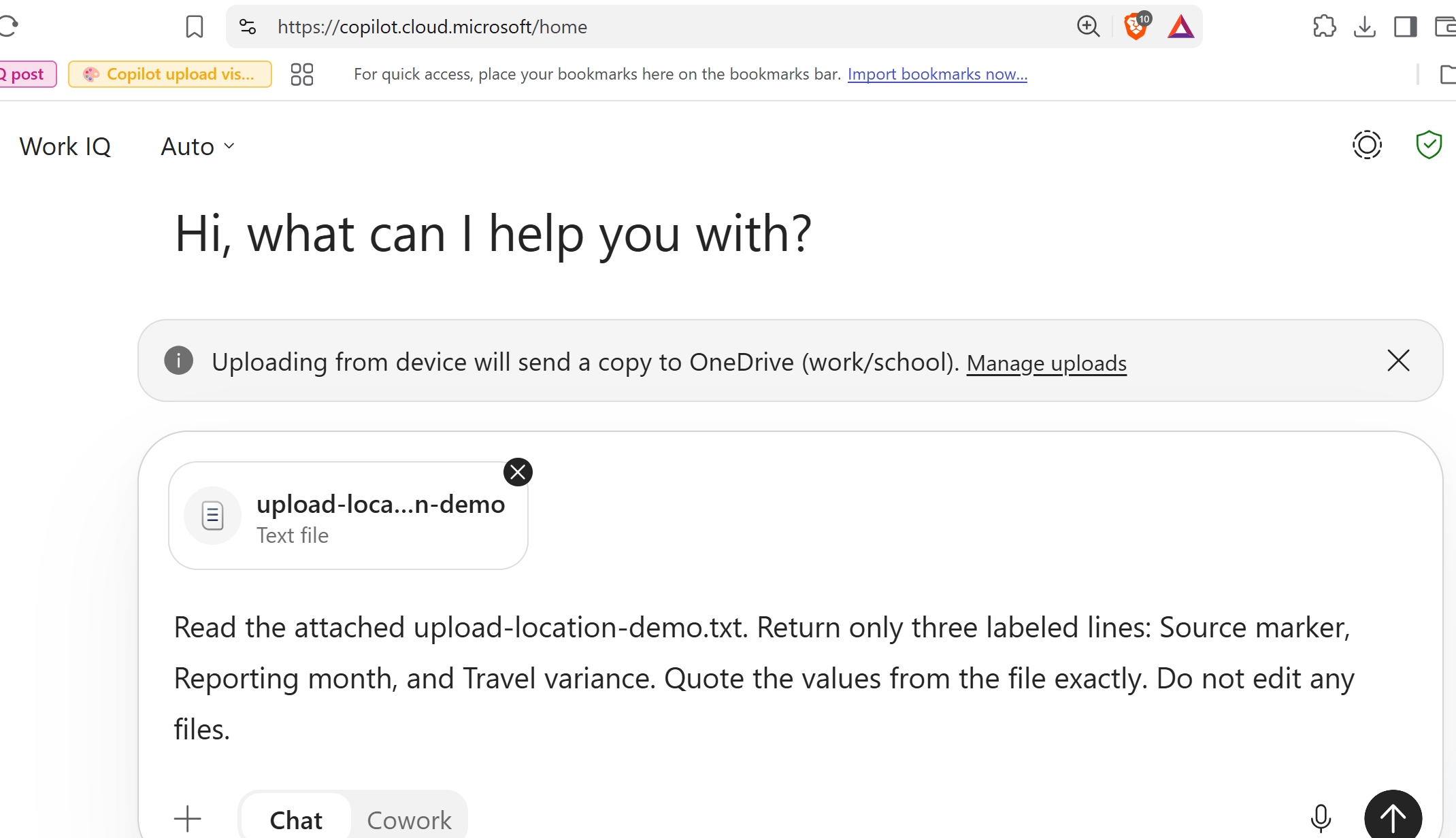
In my account, the composer displayed this notice: “Uploading from device will send a copy to OneDrive (work/school).” That is a useful bit of fine print. You picked a file on your computer, but you have just started a cloud-storage operation.
2. Follow the file to its new address
The notice included a Manage uploads link. I followed it and found the same filename in My files > Microsoft Copilot Chat Files, with a recent modified time. The file was already there before I sent the prompt. You do not have to wait for a helpful answer to acquire another copy of your document.

If your interface does not show that link, open OneDrive with the same work or school account and look for the folder directly.
Back in Copilot, this small prompt makes the source easy to check:
Read the attached upload-location-demo.txt. Return only three labeled lines: Source marker, Reporting month, and Travel variance. Quote the values from the file exactly. Do not edit any files.
Compare the response with the text file you opened. The values to look for are ORIGINAL UPLOAD, November 2026, and $5,000 under budget. This is a source check, so an eloquent paragraph about travel savings would not improve the answer.
3. Choose the working location yourself
For the alternative route, I created a OneDrive folder called Copilot file location demo and uploaded the sample there. In a new Copilot chat, I opened + > Attach cloud files, chose My files, and browsed to that folder. The picker showed the sample inside the location I had chosen. For real team work, use the appropriate SharePoint library instead of a personal demonstration folder.
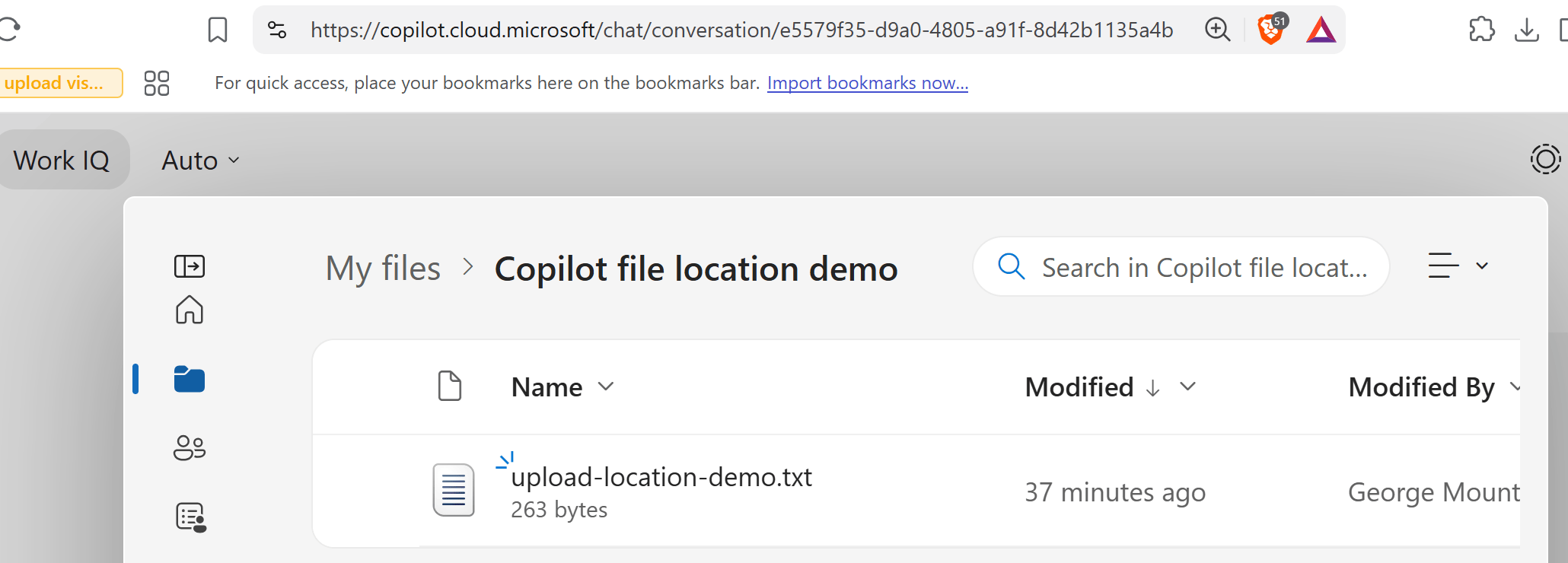
Select that existing file and use the same source-check prompt. Both my device-upload and cloud-file tests returned the expected values: ORIGINAL UPLOAD, November 2026, and $5,000 under budget. Browsing directly to the new folder worked before search found the filename, so an empty search result did not mean the upload had failed.
Quick check: you corrected the file on your laptop. Did the Copilot upload change?
No. You edited the local original; the device upload created a separate copy in OneDrive. For a fresh review, deliberately supply the corrected source and check a fact that changed. Renaming both files “final” does not bring them any closer together.
For the analysis side of this, my guide to grounding Copilot in Excel with external files shows how to give the numbers, meeting notes, and writing example different jobs, then check the explanation against the evidence.
OneDrive or SharePoint? Start with who owns the work
Microsoft distinguishes individual work in OneDrive from regular team collaboration in SharePoint. That is a useful starting point: choose a location based on who will maintain the document and who needs access.
If a colleague needs to continue the monthly review while you are away, the handoff should not begin with a tour of your personal Copilot uploads. Here is how I would choose:
| If the file is… | My usual starting point |
|---|---|
| Your own working document | A named project folder in your work OneDrive. |
| A shared report or maintained team reference | The team’s appropriate SharePoint document library. |
| A public PDF for a quick, isolated question | A direct Copilot upload can be perfectly reasonable. |
| A deliberate snapshot for a particular review | A clearly dated copy in the agreed project or review location. |
If your team uses Teams channels, you may already have the right location: channel files live in SharePoint. Check that library and its permissions before creating another home for the same report.
Give the file a home before the conversation
Choosing a cloud source does not refresh an answer you already generated. After an important correction, select the updated file, request a fresh analysis, and check a fact that changed. Likewise, choosing a synced OneDrive file through a device-upload dialog still creates an upload; use the cloud-file option when you mean to reference the existing file.
You do not need to reorganize every old upload to try this. Pick one document you expect to use again, put the current version in its intended OneDrive folder or SharePoint library, and select it from there in your next chat. Copilot can help with the report; you can decide where the report lives.
For more practice bringing AI into your Excel work, my LinkedIn Learning course, Excel with Copilot: AI-Driven Data Analysis, is fully unlocked. The full course is free, and no account is required.