
You’ve given your team access to Copilot. Now comes the reasonable question: is anyone actually using it in Excel—and is it helping?
Here’s where I would start. You only need a few checks to get a useful first picture.
The quick answers
- Who has a paid license? Check Billing → Licenses. Buying a seat and assigning it are separate steps.
- Are they using Copilot in Excel? Check Adoption by app in the Copilot usage report. Look at Excel specifically.
- Can admins read the prompts? Authorized reviewers can access supported, retained content through Microsoft Purview. The usage report does not show the conversations.
- Does more usage mean better results? No. Check the finished work, including time spent reviewing and correcting it.
Not a Microsoft 365 admin? Send this guide to your IT contact. They can help you get the right report access or provide a summary. You do not need to become a compliance administrator to plan useful Excel training.
1. Check who has a paid Copilot license
Where to click: Open the Microsoft 365 admin center, then Billing → Licenses.
- Find your Copilot product. In my account, it is called Microsoft 365 Copilot Business (add-on).
- Compare Available licenses with Assigned licenses.
- To check a particular person, open Users → Active users, select them, then review Licenses and Apps.
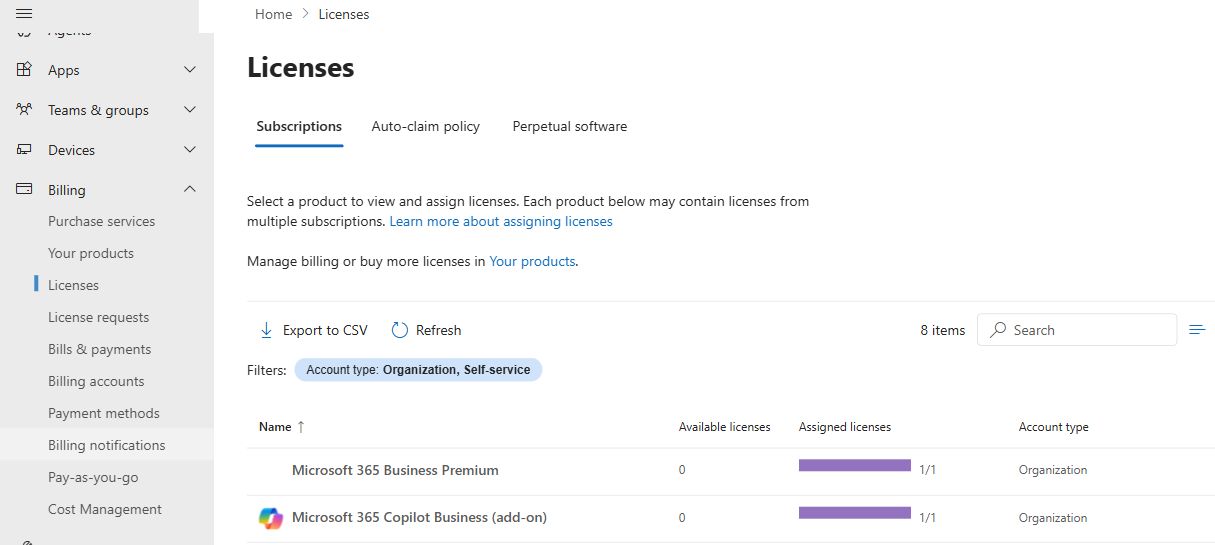
What to do with this: Compare the assignments with your intended pilot group. If someone is missing, resolve access before treating their lack of activity as a training problem.
One wrinkle: a Copilot button in Excel does not prove someone has the paid add-on. Eligible users can have an included experience. I explain that in this guide to Copilot Chat in Excel without a paid Copilot license.
2. Check Excel usage—not just overall Copilot usage
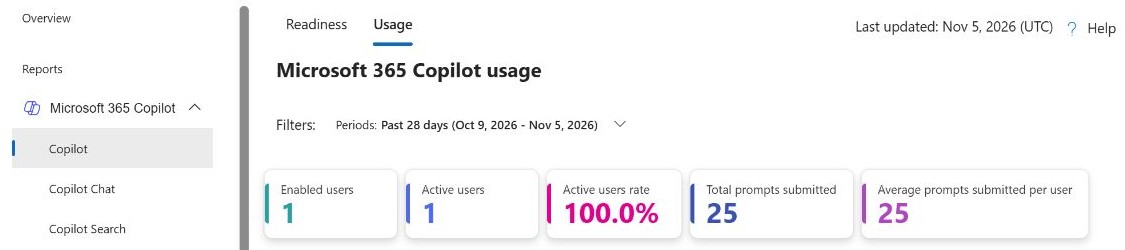
Where to click: Reports → Usage → Microsoft 365 Copilot → Copilot. If Reports is hidden, expand the navigation and choose Show all.
- Open the Usage tab. Choose a period, such as Past 28 days.
- Check Last updated. These reports are not live.
- Scroll to Adoption → Adoption by app and find Excel.
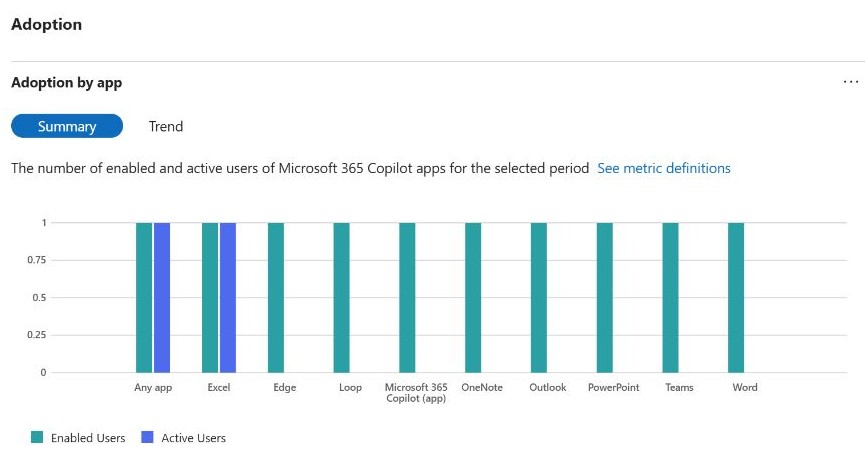
For individual follow-up, scroll to Copilot usage details and look for Last activity date of Excel. You can export the table. Names may be concealed by your organization’s privacy settings.
Using the included Copilot Chat experience? Open the separate Copilot Chat report for users without the paid Copilot license, and use its application breakdown where available. Do not mix the two populations when measuring your rollout.
3. Understand what you can see about prompts
Can your organization see the actual prompts? Yes, with the appropriate Microsoft Purview access and retained data. That is a separate process from checking adoption.
- Usage reports: activity measures and dates. They do not let you read everyone’s conversations.
- Purview Audit: interaction context, such as the user, time, and application. An audit event is not itself a full transcript.
- Purview content review or eDiscovery: supported prompts and responses, subject to permissions, licensing, and retention.
For training, my starting point would be simpler: ask participants to share one task, the prompt they tried, the result, and what they had to fix. That gives us something useful to coach. A prompt count on its own does not explain why someone is struggling.
4. Check whether the work is getting better
Choose one recurring Excel task before the pilot starts. Agree on what a correct result looks like, then compare the time to a checked, usable result.
At a weekly pilot check-in, I would ask just three questions:
- Access: Does everyone have the experience we intended them to use?
- Use: Are they returning to Copilot in Excel after the first demonstration?
- Results: Which tasks became easier, and where did errors or extra review wipe out the benefit?
Those answers help you decide what to teach next and which workflows deserve more testing. A rising prompt total cannot make that decision for you.
For your IT admin: reporting limits and Microsoft references
Dates and definitions: The paid Copilot report normally updates within 48 hours. Opening the pane alone does not count as use. Its latest activity dates are independent of the selected window, so compare the Excel date with your review period. Copilot usage report definitions.
Access and privacy: Check license assignments, reporting roles and concealed identities, and the separate Copilot Chat report.
More detailed analytics: The Copilot Dashboard in Viva Insights can support deeper analysis, depending on eligibility. Check the current metric definitions before promising feature-level tracking: Microsoft marks several Excel measures as no longer tracked and potentially returning zero.
Prompt content: Start with Microsoft’s audit guidance, content-viewing permissions, eDiscovery search guidance, and retention rules. A Copilot license alone does not grant every Purview capability; check the licensing requirements.
Want help turning this into a plan for your team?
I help finance, accounting, and operations teams put Excel and Copilot to work on the tasks they actually face.
We can work with your Microsoft 365 admin to understand access and usage, choose a few worthwhile Excel workflows, and build hands-on training around them. Then we can review real examples together and decide what to improve next.
For a team workshop or ongoing rollout support, tell me what your team does in Excel and where you are getting stuck.
Screenshots are from my own Microsoft 365 admin center, with identifying areas cropped out. Screens and product names can vary by tenant. Checked November 6, 2026.