
Lately it seems like every conversation about AI revolves around “agents.” Agentic systems, agentic workflows, autonomous agents. At the same time, people still talk about automation workflows, and the two ideas often get blended together in ways that make it hard to tell what anyone actually means.
My friend Tobias Zwingmann wrote a great piece called “AI Workflows vs AI Agents vs Everything in Between” that does an excellent job clarifying the difference between these architectures. This post is very heavily inspired by his framework. What I want to do here is apply those ideas specifically to Excel use cases, because once you start looking at real systems the distinction becomes much clearer.
The traditional Excel workflow automation (no AI)
Before we get into AI, it helps to understand the simplest architecture that already powers a huge amount of Excel work. The diagram below comes from Tobias Zwingmann’s article and illustrates the basic structure of a workflow:

In a workflow like this, the system simply follows a predefined sequence of steps. A trigger occurs, a set of operations runs in a fixed order, and an output is produced. Nothing about the process is dynamic. The system is not interpreting the situation or deciding what to do next. It is just executing the instructions that were defined ahead of time.
This pattern is actually the bread and butter of most Excel reporting systems. In fact, you could argue that Power Query itself is essentially a workflow engine. Each transformation step is recorded and then replayed in sequence every time the query refreshes.
Once you start looking at Excel systems through this lens, you realize that many common reporting pipelines already follow this exact architecture.
Example 1: Basic Power Query data pipeline
Suppose a sales team exports a CSV from their CRM system every morning. Instead of cleaning the file manually, you build a Power Query workflow inside Excel.
The steps might look something like this:
- Import the CSV file
- Remove unnecessary columns
- Standardize date formats
- Convert text values to numeric fields
- Create a calculated column for total sales
- Load the cleaned data into an Excel table
Once the query is built, the workflow becomes extremely simple. Each time the query refreshes, Excel applies the exact same sequence of transformations.
The process is fully deterministic. The same input always produces the same output.
Example 2: Power Automate + Office Scripts workbook processing
A slightly more modern version of the same idea might combine Power Automate with Office Scripts.
Imagine a team that receives weekly Excel files from regional offices. Each file needs to be standardized before it can be used in a central reporting model.
A Power Automate flow might handle the process like this:
- A new Excel file is uploaded to a SharePoint folder
- The flow triggers automatically
- An Office Script runs to standardize the workbook:
- Convert raw data into a structured Excel table
- Rename columns to match the reporting schema
- Apply consistent formatting
- The cleaned workbook is saved to a “Processed Files” folder
Again, the workflow follows a fixed sequence. Nothing about the system decides what to do dynamically. It simply executes the predefined steps every time a file appears.
In both of these examples, the process behaves like a checklist:
A → B → C → D
The system never decides what the next step should be. It simply runs the steps that were defined ahead of time. This kind of deterministic automation is still the foundation of most Excel systems today. And in many cases, it’s exactly what you want: predictable, transparent, and easy to maintain.
Where things start to get more interesting is when we introduce AI as one step inside this workflow.
The Excel Automated AI workflow
The next step up from simple automation is when AI becomes one step inside a structured workflow.
The diagram below (again taken from Tobias’s article) illustrates the idea. The process still follows a controlled sequence of steps, but one of those steps uses AI to interpret or generate something.

The important point is that AI is not orchestrating the system. The workflow still controls the order of operations.
This pattern turns out to be extremely practical for Excel users because most reporting processes already follow a predictable structure. AI simply handles the parts that require interpretation or narrative.
Example: automating a variance deck
A good example is the workflow I showed in my recent post on automating a monthly variance presentation with Power Automate and Copilot.
At first glance this might sound like an “AI agent,” but technically it is much closer to an AI workflow. Here’s the actual architecture:
Power Automate flow → Load Excel table → Run AI prompt to analyze results → Generate executive summary bullet points → Insert bullets into PowerPoint template → Save finished presentation
In other words:
Power Automate → Excel table → AI prompt → PowerPoint outputThe key detail is that the workflow itself is still fully controlled. Power Automate determines the sequence of steps. The AI is simply responsible for generating the narrative summary that would normally be written by an analyst.
That means the system remains predictable and auditable:
- The workflow determines when it runs
- The Excel table defines the data source
- The PowerPoint template defines the output format
- The AI only fills in the narrative portion
This pattern is extremely powerful because it lets you automate the parts of reporting that used to require human interpretation, without giving up control of the overall process.
The Excel AI Agent
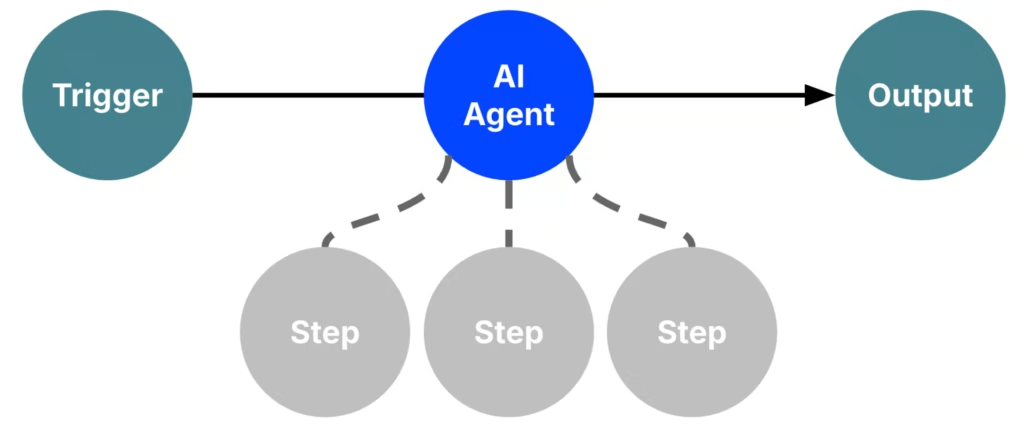
This next architecture is what people usually mean when they talk about AI agents. In this model, the AI is no longer just a step inside a workflow. Instead, the AI becomes the decision-maker that determines which steps to take.
Instead of a predefined sequence like:
A → B → CYou provide a goal, and the agent decides how to achieve it:
Goal → agent decides steps
The agent can call tools, access data sources, perform analysis, and generate outputs. Importantly, the order of those actions is not fixed ahead of time.
Example: receipt classification agent
A good example of this architecture is the expense report agent I showed in my post about building a PDF receipt classifier with Copilot:
The user interaction is very simple: The user uploads receipts. That is the trigger. But from there, the agent decides what actions are required to reach the goal.
For example, the agent may:
- extract text from the PDF
- identify transactions within the document
- look up the correct expense account codes
- structure the results into rows
- generate a properly formatted Excel workbook
- return the file to the user
A simplified architecture looks like this:
User goal → AI agent → Tool selection and reasoning → Excel file creationThe key detail is that the agent determines how to reach the outcome.
Why this is an agent and not a workflow
The difference becomes clearer when you compare it to a workflow. In a workflow, the sequence of steps is fixed. For example:
Power Automate → Excel → AI step → PowerPoint
Every run follows the same path.
The receipt classification example is different. Instead of defining the steps, you define the goal: classify transactions from uploaded receipts and return an Excel report. The agent then decides how to achieve that using the tools and knowledge sources available to it.
Because receipts vary widely, the reasoning path can change from run to run. That dynamic decision-making is what makes this an agent rather than a workflow.
Why this matters for Excel users
Workflows with an AI step will cover most reporting scenarios.
Agents become useful when the inputs vary significantly and the system needs flexibility in how it extracts and interprets information. Expense receipts are a good example, since each document may require a slightly different approach to produce a clean Excel table.
The agentic Excel workflow
The final pattern is what you might call an agent embedded inside a workflow:
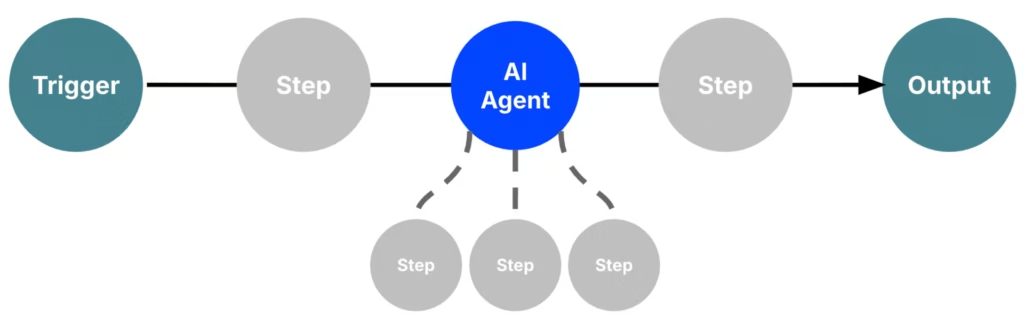
This is actually where many practical business systems are likely to land.
Instead of choosing between a rigid workflow or a fully autonomous agent, you combine the two. The workflow still orchestrates the overall process, but a specific step is delegated to an agent that can reason dynamically.
The structure typically looks like this:
Workflow → Agent step → Workflow continues
For example, imagine an expense automation system:
Upload receipts → Agent extracts transactions → Workflow validates totals → Excel workbook generated → Email finance team
In this setup, the workflow handles the predictable parts of the process: triggering the system, validating results, saving files, and distributing reports. The agent handles the messy reasoning step, such as extracting transactions from receipts, interpreting vendor names, or assigning categories.
This hybrid pattern often works well because it combines the strengths of both approaches. The workflow provides structure and reliability, while the agent adds flexibility where the inputs are unpredictable.
I haven’t built a full example of this pattern yet, but it’s something I’m planning to experiment with. Once I do, I’ll update this post with a concrete walkthrough.
Conclusion
Right now the AI conversation is full of big terms: agents, agentic systems, autonomous workflows. But for most Excel professionals, the practical question is much simpler: what kind of system are you actually building?
Sometimes the right answer is still a straightforward automation workflow. Tools like Power Query, Power Automate, and Office Scripts can already handle many repetitive tasks reliably. In other cases, it makes sense to insert an AI step into that workflow to summarize results, classify data, or extract information from documents.
True agents are different. They introduce autonomy into the process and decide which actions to take in order to reach a goal. That flexibility can be powerful, but it also adds complexity.
Understanding the distinction helps you choose the simplest approach that actually solves the problem. In many real-world Excel scenarios, that ends up being a structured workflow with one or two well-defined AI steps.
A big part of how I’ve been thinking about this, to repeat, comes from Tobias Zwingmann’s excellent breakdown of AI workflows vs. agents. His framework helped clarify the landscape, and my goal here was simply to ground those ideas in practical Excel examples.
To explore these ideas further, I highly recommend checking out Tobias’s book The Profitable AI Advantage. It focuses on how organizations can actually create real business value with AI rather than just experimenting with the latest tools or buzzwords.
Thanks again, Tobias, for the inspiration behind this post!
If you’d like to explore these ideas further, this is exactly the kind of material I cover in my membership, where I walk through practical Excel examples using tools like Power Query, Power Automate, Copilot, and Office Scripts in much more depth.